
Active Tool
The Chisel workspace tool turns the viewport into a drag-to-place editor. Activate it from the toolbar (T to toggle the toolbar), then pick what LMB does: select, draw primitives, or cut with a bisect line.
Activation
In the 3D View, open the toolbar and click the Chisel tool icon. The header at the top of the viewport switches to Chisel-specific tool settings.
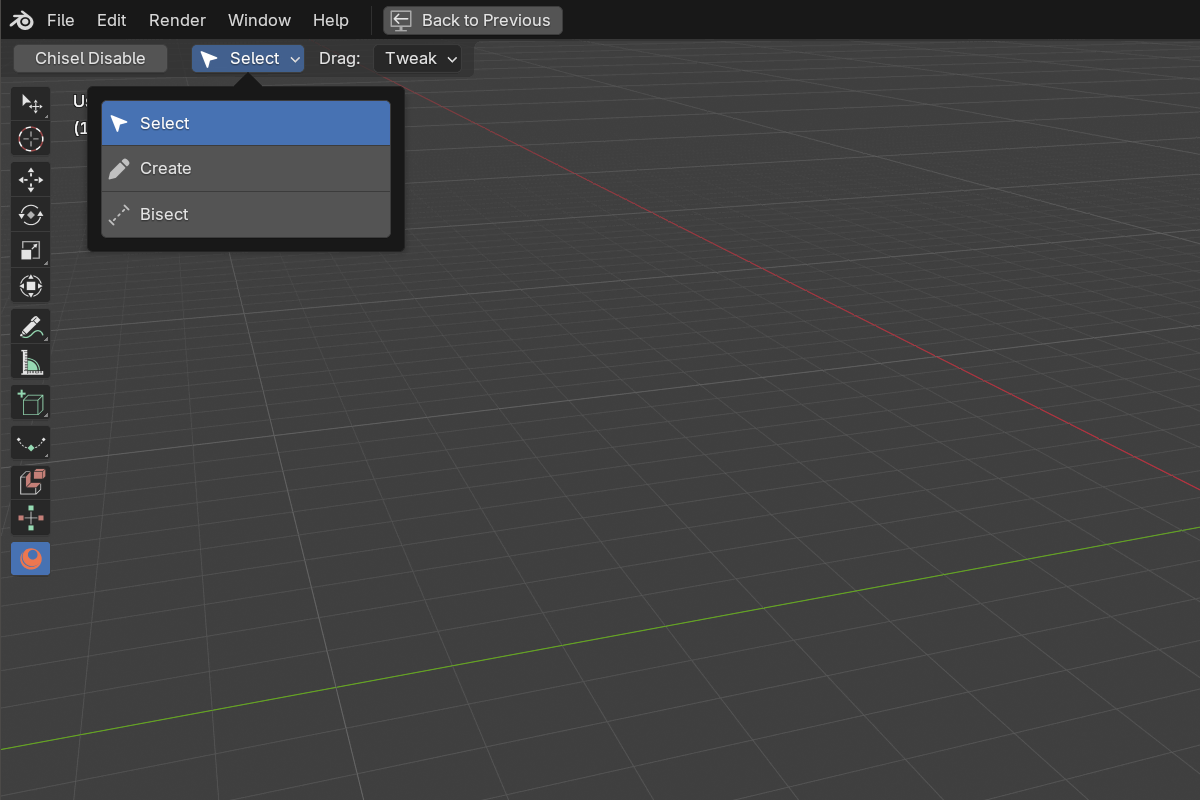
Hover the tool icon to see its tooltip: it opens with the addon version (v: 4.0.0) followed by the full hotkey list, so the complete keymap is always one hover away.
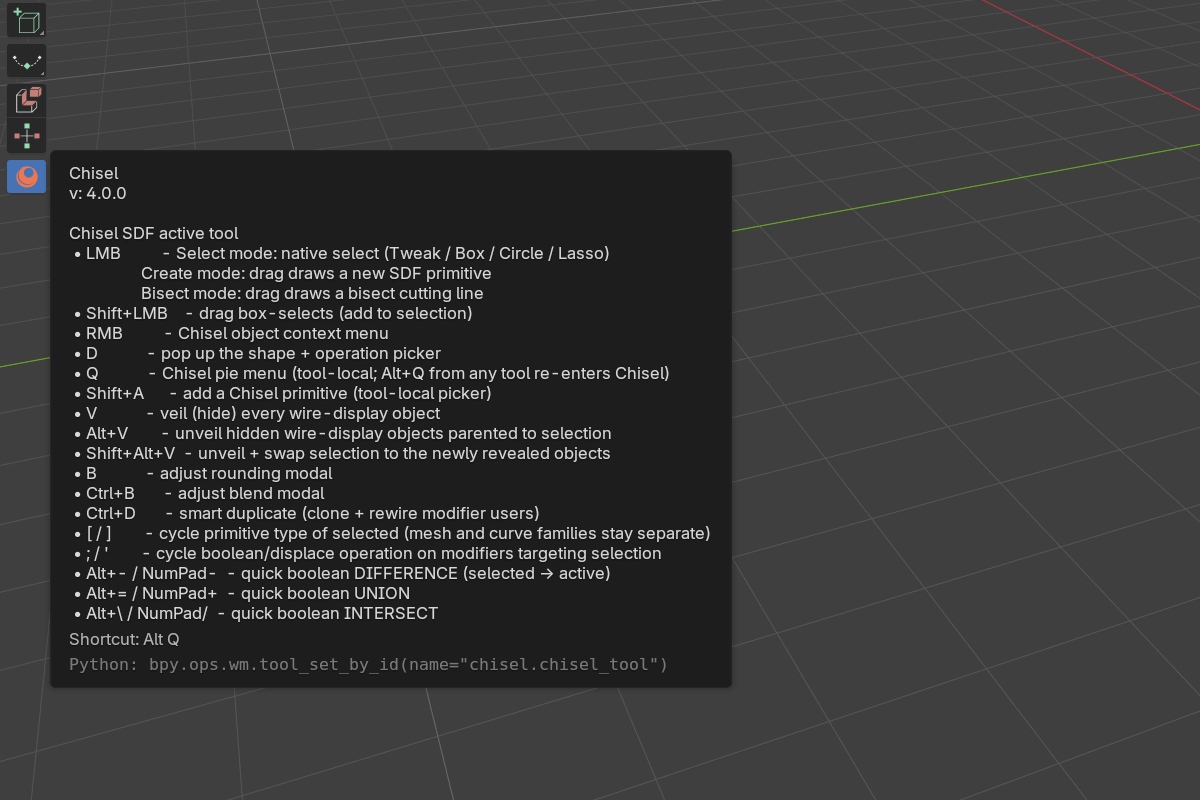
Modes
The first control in the tool header is a Mode popover deciding what the LMB gesture does. It comes before the mode-specific options because it changes what all of them mean.
| Mode | LMB does |
|---|---|
| Select (default) | Blender’s own fallback select tool — Tweak / Box / Circle / Lasso |
| Create | Drag draws a new SDF primitive |
| Bisect | Drag draws a cutting line; every selected SDF object is cut |
Select mode is genuinely Blender’s selection, not a reimplementation: picking it flips the tool to Blender’s fallback keymap, so the Tweak / Box / Circle / Lasso picker in the viewport header (and its Set / Extend / Subtract / Invert / Intersect mode row) works exactly as it does with any other tool. That means the Chisel tool can now stay active all the time — you no longer have to leave it to select normally.
Create mode
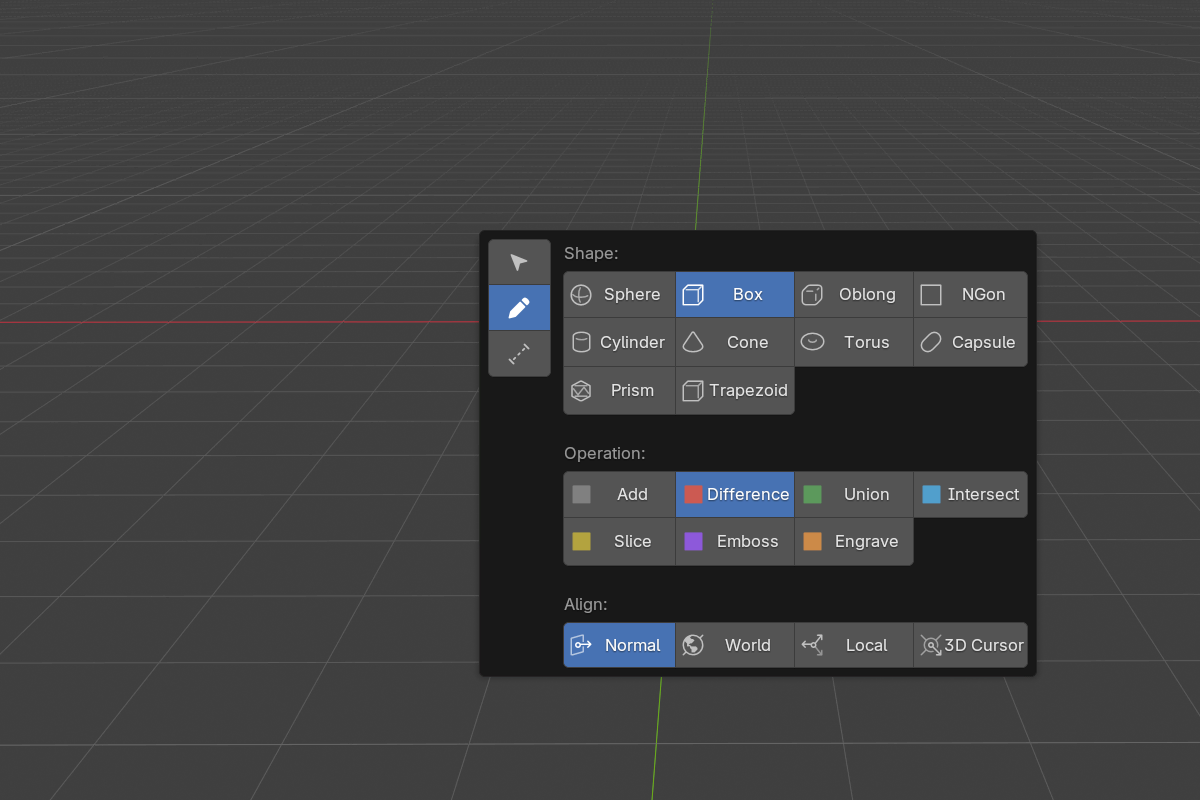
Drag to place a primitive at the cursor and scale it live. The header gains Shape, Operation, and Align popovers:
- Shape — Sphere / Box / Oblong / Ngon / Cylinder / Cone / Torus / Capsule / Prism / Trapezoid
- Operation — Add / Difference / Union / Intersect / Slice / Emboss / Engrave. Anything other than Add wires the new shape as a modifier on the selected objects instead of as a free-standing object.
- Align — orientation applied at spawn:
- Normal (default) — surface normal under the cursor
- World — world axes
- Local — object-local axes under the cursor
- Cursor — Blender’s 3D Cursor orientation
Bisect mode
Drag to cut. Select the SDF objects you want to cut first; each one gets its own Bisect modifier whose plane passes through that object’s own origin, projected onto the drawn plane. The header gains a Bisect Shape popover:
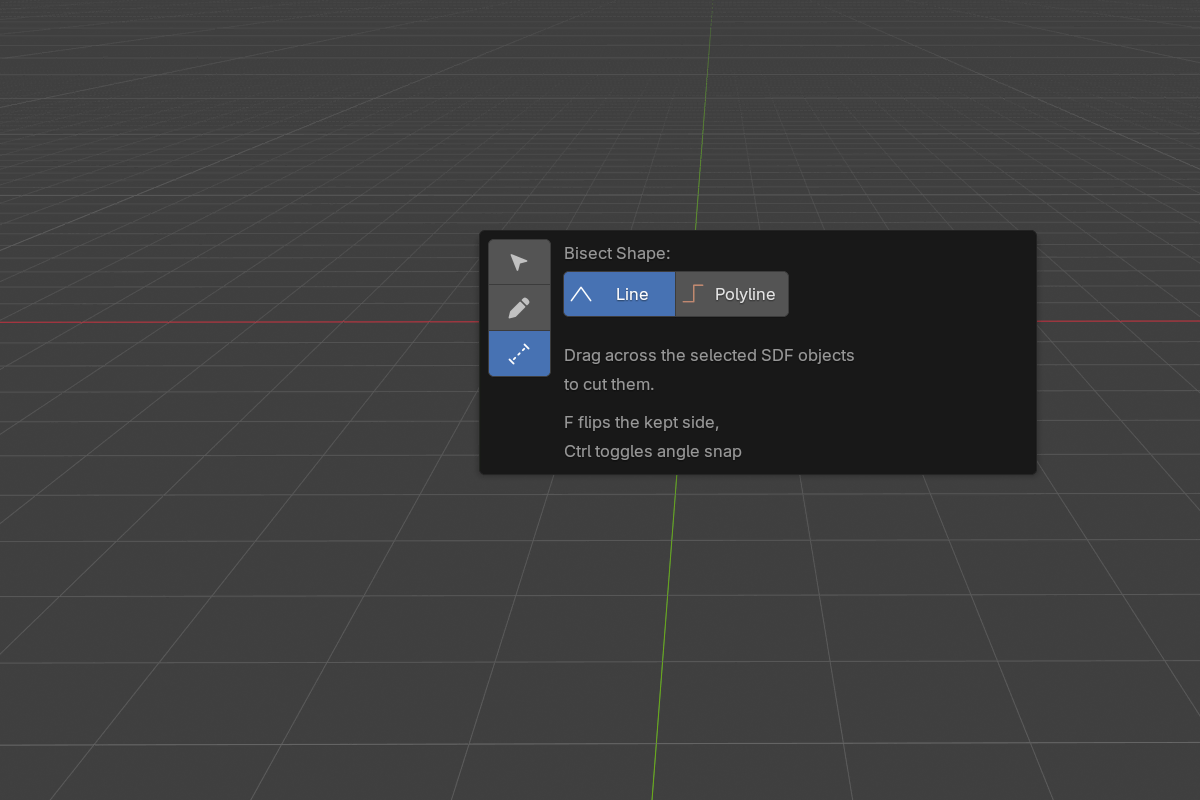
- Line — one drag, one infinite cutting plane
- Polyline — drag the first segment, then click to add corners;
SpaceorEnteraccepts,Backspaceremoves the last corner
In both, F flips which side is kept and Ctrl toggles angle snap. The shaded side of the preview is the side being cut away.
Mouse controls
| Action | Effect |
|---|---|
| LMB-drag | Mode-dependent: native select / place a primitive / draw a bisect |
| LMB-click | Click-select under the cursor (deselect all others) |
| Shift + LMB-drag | Box-select add — available in every mode |
| RMB | Chisel context menu on a Chisel SDF object |
Keyboard shortcuts
| Key | Action |
|---|---|
D | Mode picker with the current mode’s options |
Q | Chisel pie menu (tool-local; Alt + Q re-enters the tool from anywhere) |
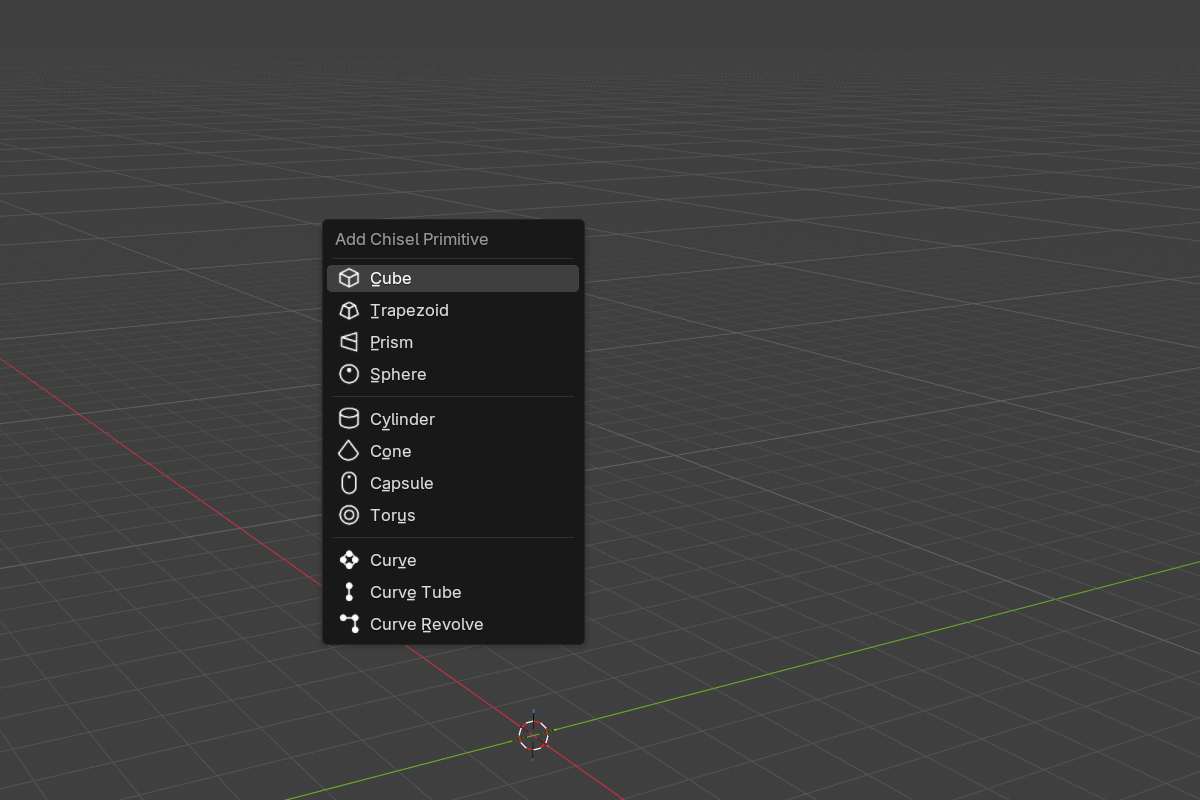
Shift + A | Primitive submenu without dropping the tool |
[ / ] | Cycle the primitive type of the selection |
; / ' | Cycle the boolean / displace operation on modifiers targeting the selection |
[ and ] step the selected shape through its primitive type — mesh and curve families stay separate, so a cycle never turns a box into a curve. ; and ' step modifiers that target the selection through the boolean / displace operations (Difference → Union → Intersect → Emboss → Engrave; Slice is excluded). Both pairs work only while the Chisel tool is active.
The D menu
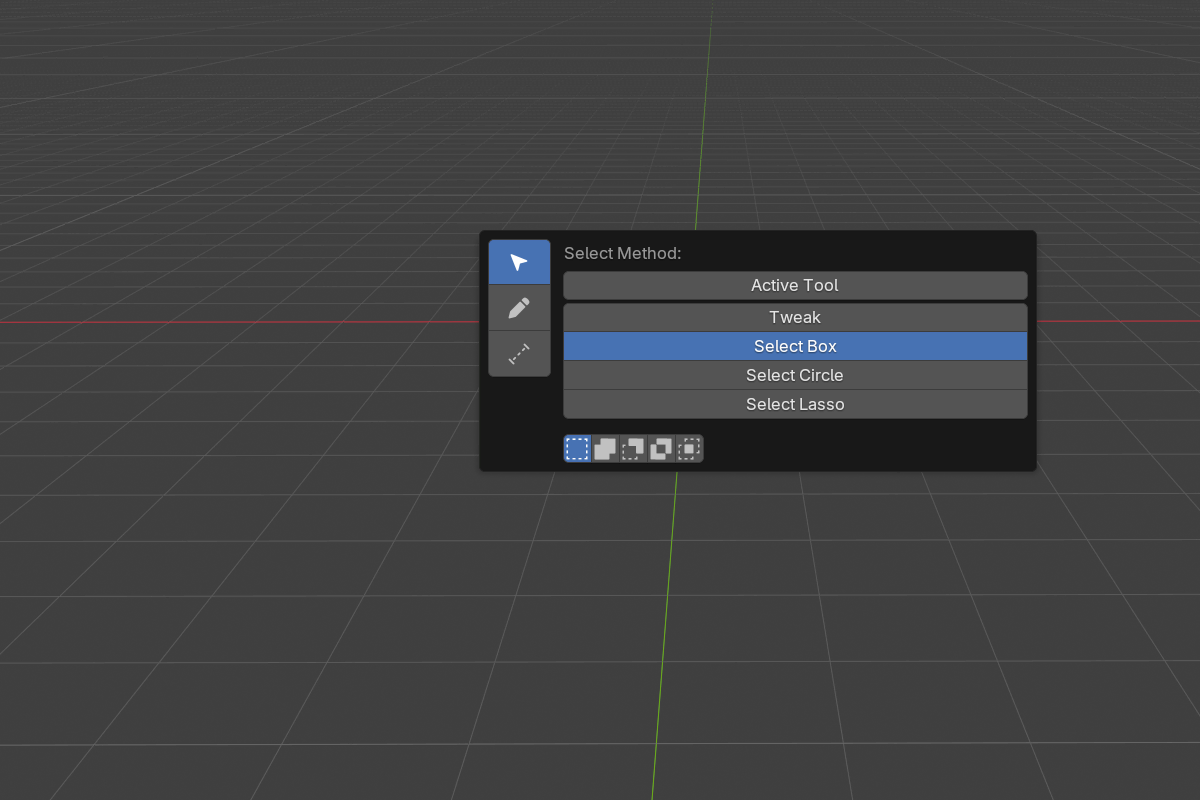
D opens a split popup: a narrow rail of mode icons down the left edge, and the picked mode’s options in the body on the right. Clicking a rail icon swaps the body in place, so the popup doubles as the fastest way to change mode.
Select shows Blender’s own fallback-tool picker plus its selection-mode row:
Create shows the shape grid, the operation grid, and align:
Bisect shows the Line / Polyline choice and the gesture’s keys:
Shift + A opens the standard primitive submenu, scoped to Chisel:
Drag clamping
Tiny drags (under 4 pixels) are clamped to a near-zero spawn scale so a stray click doesn’t paste a full-size primitive. To create a default-size primitive, hold the mouse and drag a noticeable distance.
See also
- Pie Menu — keyboard alternative for adding primitives
- Right-Click Menu — the
RMBcontext menu the tool enables - Modifiers: Bisect — what the Bisect-mode gesture creates
- Modifiers: Boolean — what Operation = Difference / Union / etc. does
- Keymap — full hotkey list