
Bisect
Bisect cuts a shape with a plane and throws away one side. It is the cheapest way to flatten a face, slice a shape in half, or trim a chain against a reference frame — no cutter object required, and the cut edge can carry the same blend profiles the booleans use.
Adding a bisect
- Modifier panel — Add Modifier → Bisect
- Object panel — the same entry in the Chisel Add Modifier menu
- Active tool — switch the Chisel tool to Bisect mode and drag a cutting line straight across the viewport
Selection decides how the plane is seeded:
- One shape selected — you get a Custom plane at the object’s own origin along its local Z. Edit Location and Normal in the panel.
- Two or more selected — the active object becomes the plane: every other selected shape is cut across the active object’s origin and local Z axis. An Empty makes an ideal plane handle.
The pie menu has no Bisect button — add it from the panel menus or draw it with the tool.
Cut kinds
A bisect item is either a single Plane or a Polyline fence. The kind is set when the modifier is created (the panel header shows which): panel-added bisects are always Plane; the tool’s Polyline gesture produces a Polyline.
Plane
One infinite cutting plane, from one of two sources:
- Object (default) — another object’s origin is a point on the plane and its local +Z is the normal. Leave Plane Object empty to use the modified object’s own origin and Z. Moving the plane object updates the cut live.
- Custom — an explicit Location and Normal, expressed in the modified object’s local space, so the plane travels with the object.
Polyline
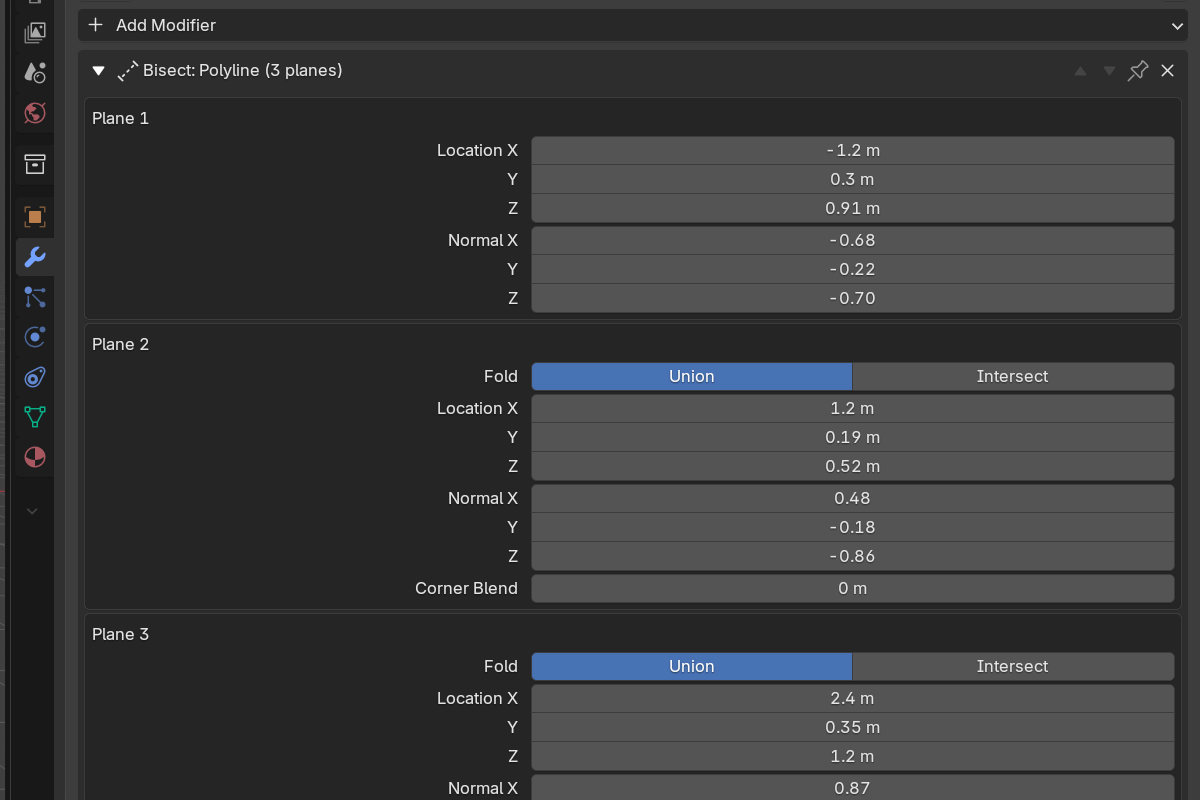
A fence of connected planes: one plane per drawn segment, with the first and last segments unbounded. Each plane after the first records how it joins the fold of the planes before it, and can fillet that join.
In the panel each plane gets its own block, in draw order. Plane 1 shows only Location and Normal — it seeds the fold, so it has no fold or corner rows. Every plane after it adds:
- Fold — Union (cut where this plane or the previous planes cut) or Intersect (cut only where this plane and the previous planes cut). Set from the drawn corner’s turn direction.
- Location / Normal — same as a Custom plane, editable per segment
- Corner Blend — fillet radius on the crease where this plane meets the previous one (
0.0= hard corner) - Profile / Smooth — Round / Sharp / Soft / Tight / Chamfer for that corner, plus the chamfer smooth
Common parameters
- Flip — keep the other side of the cut. Available on both kinds.
- Blend — enable a smooth fillet along the cut edge, with the usual Profile and Smooth controls.
0blend is a hard, exact planar cut.
Drawing a bisect in the viewport
With the Chisel tool in Bisect mode, LMB-drag draws the cut. Select the SDF objects you want to cut first — the gesture reports a warning if nothing eligible is selected. Every selected object gets its own bisect modifier whose plane passes through that object’s own origin, projected onto the drawn plane.
| Key | Line | Polyline |
|---|---|---|
| LMB-drag | Draw the cutting line | Draw the first segment |
| LMB-click | — | Add a fence corner |
Space / Enter | Confirm | Accept the fence |
Backspace | — | Remove the last corner |
F | Flip the kept side | Flip the kept side |
Ctrl | Toggle angle snap | Toggle angle snap |
Shift | Precision | Precision |
RMB / Esc | Cancel | Cancel |
The shaded side of the preview is the side that gets cut away, and the default keeps the bulk of the selected objects — F swaps it if you want the other half.
See also
- Active Tool → Bisect mode — the viewport gesture
- Boolean — cutting with a shape instead of a plane
- Rounding & Blending — what the blend profiles look like