
View Markdown
Convert to Mesh
Convert one or more Chisel objects into standard Blender meshes for export, sculpting, or use in any other engine.
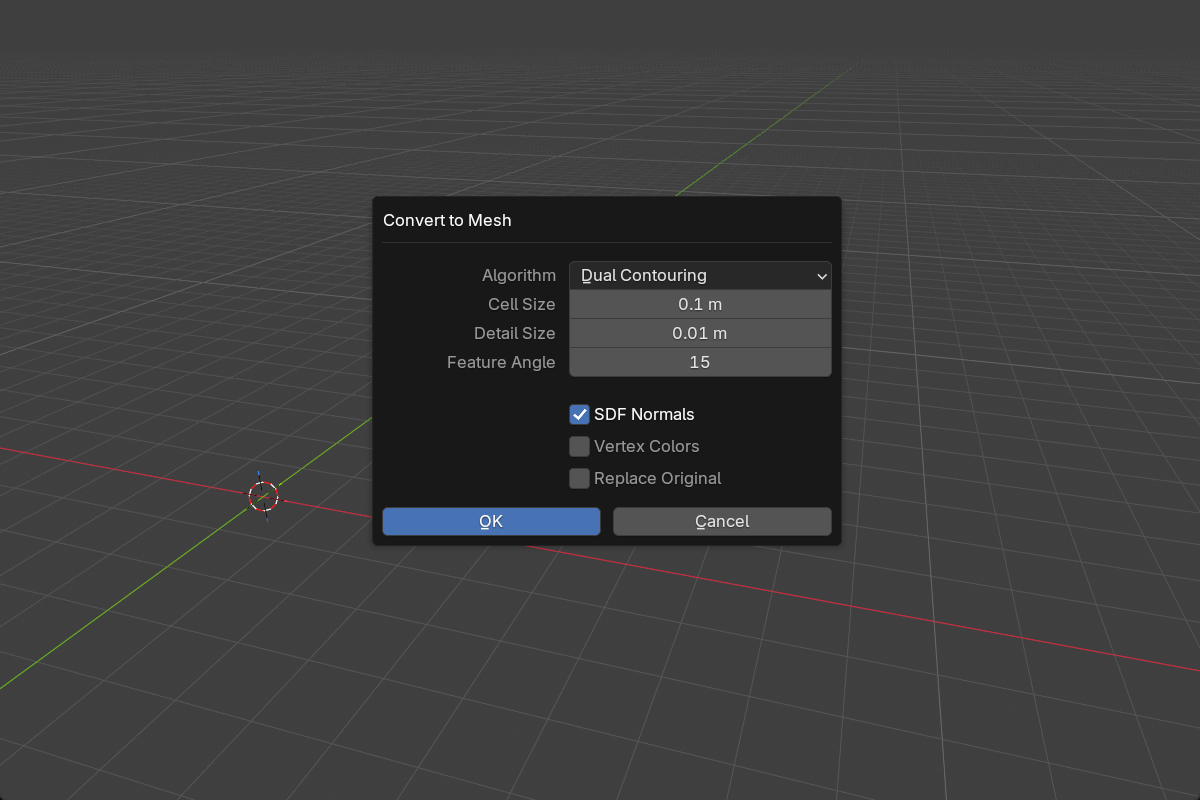
Workflow
- Select one or more Chisel objects.
- Click To Mesh in the Object Properties panel, or open the pie menu (
Q) and pick Convert. - The settings dialog shows a live grid overlay previewing the cell size.
- Choose the algorithm and adjust settings, then confirm.
- The SDF is sampled and a polygon mesh is generated.
Converted meshes go into a Remesh collection. With Replace Original on, the SDF object is converted in place instead.
Common parameters
- Cell Size —
0.001–1.0Blender units (default0.1). Grid cell size. Smaller = more detail, slower conversion. Resolution is computed from cell size and the object’s bounding box. - SDF Normals — default on. Use the SDF gradient as custom split normals on the converted mesh, so its shading matches the ray-marched preview.
- Replace Original — default off. Replace the SDF object in place, or create a new mesh alongside it.
Algorithms
Dual Contouring (default)
Quad-dominant meshes with sharp-edge preservation via QEF solving. Best for hard-surface modeling.
- Detail Size —
0.0001–0.1, default0.01. Cell size near features. When smaller than Cell Size, enables adaptive octree refinement. - Feature Angle —
5°–90°, default15°. Normal deviation that triggers refinement (lower angle = more refined detail).
Marching Cubes
Classic triangle-mesh algorithm. Uniform grid, no adaptive refinement, capped at 1024 cells per axis.
Best for smooth, organic surfaces where sharp edges aren’t needed.
Choosing an algorithm
| Style | Recommended algorithm |
|---|---|
| Hard-surface (panels, mech, hardware) | Dual Contouring |
| Organic (creatures, terrain, blobs) | Marching Cubes |
| Both, leaning hard-surface | Dual Contouring with Detail Size < Cell Size |
| Quick preview while iterating | Either; raise Cell Size for speed |
See also
- Rebuild Mesh — proxy mesh refresh (separate from full conversion)
- Render Engine: Baking — texture bakes without converting