
View Markdown
Gizmos
The render settings expose toggles for the in-viewport gizmos Chisel draws on top of your scene — the arc-and-dot widgets that let you adjust rounding and blend radii by clicking and dragging. These are independent of Blender’s overlay menu.
For how the gizmos behave during interaction (modal hotkeys, color coding by operation), see Interface: Gizmos. This page covers only the per-scene render-side toggles.
Axis gizmos
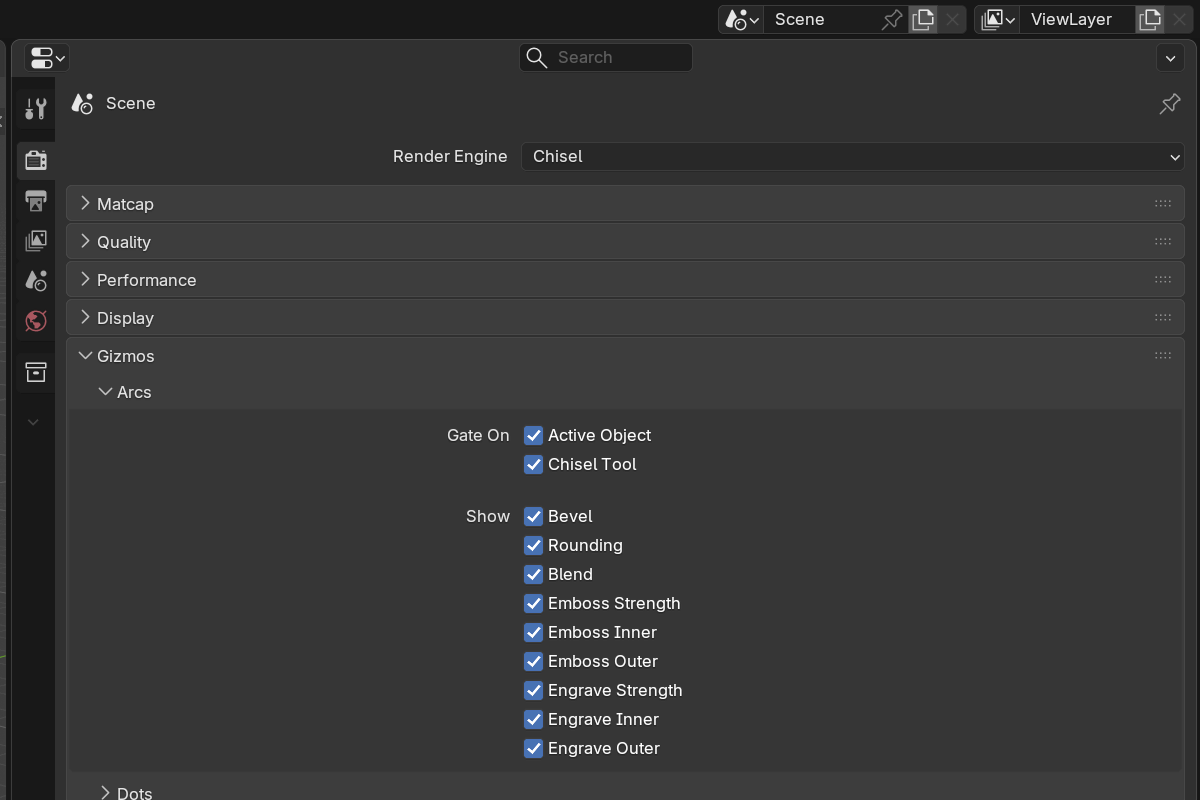
Per-axis toggles for the rounding and bevel arc gizmos. Disable the axes you never adjust on a given object to keep the viewport clean.
- X / Y / Z — show the rounding arc on each axis individually
- Useful when an object has rounding only on, say, the vertical edges — turning off X and Y leaves only the Z arc visible
Dot gizmos
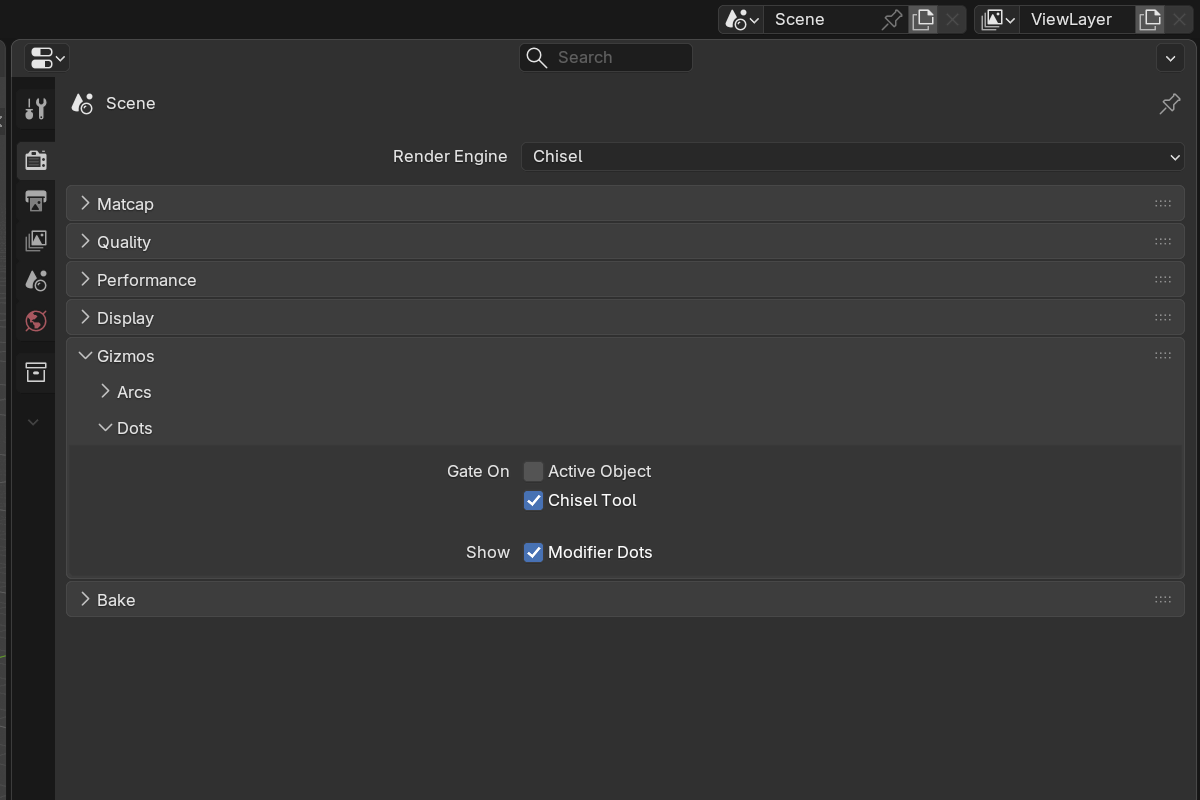
Toggles for the click-drag dots that open the Adjust Rounding modal.
- Show dots — draws the click handles on each gizmo arc
- Hide them if you prefer keyboard-driven adjustment via
B(primitive rounding) andCtrl+B(boolean blend), or if the dots get in the way at small zoom levels
When to disable gizmos
- Presentation / screenshots — turn everything off so the viewport is pure ray-marched output
- Dense scenes — too many overlapping arcs can clutter the view; disable axes you don’t need
- Keyboard-only workflow — disable dots and use
B/Ctrl+Bexclusively
See also
- Interface: Gizmos — gizmo behavior, color coding, modal interaction
- Rounding and Blending — full modal hotkeys
- Preferences — gizmo theme colors and arc geometry