
View Markdown
Performance
When you orbit, pan, or drag a gizmo, Chisel switches to a lower-quality preset for instant feedback. When you stop moving, it settles back into full quality with a tile-based progressive refinement.
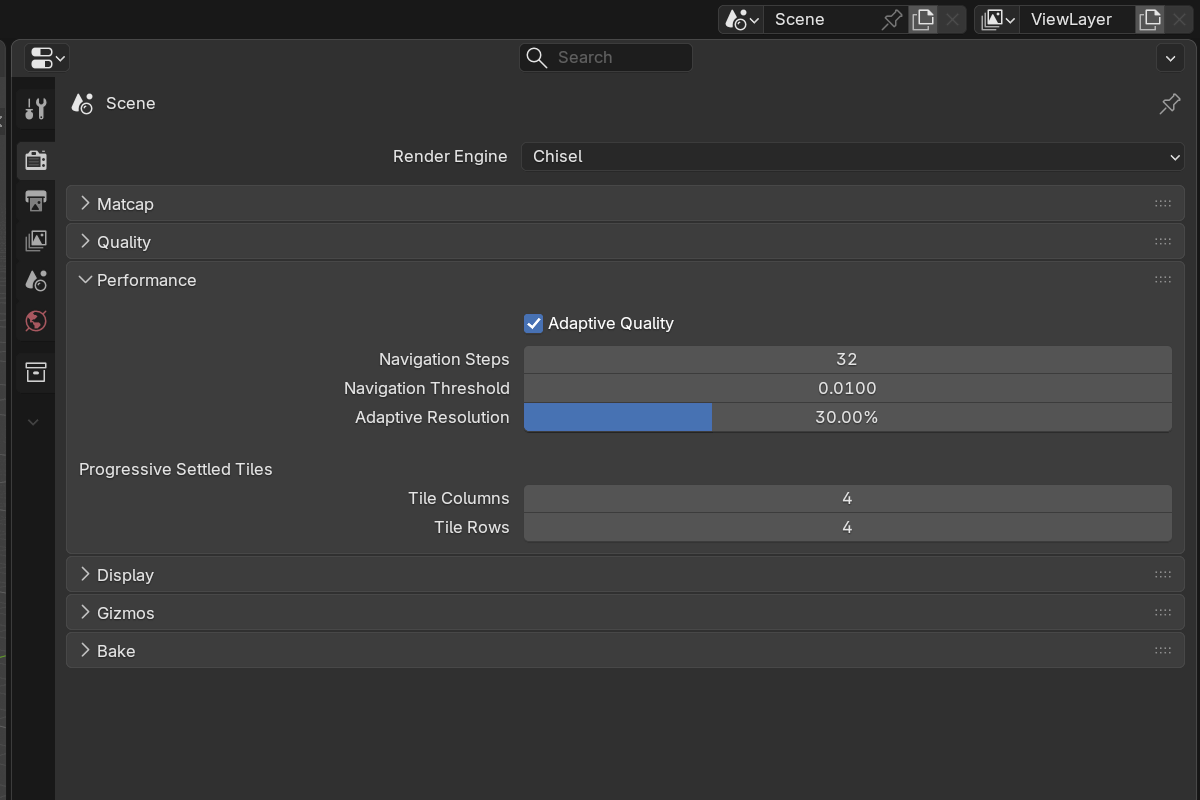
Adaptive quality (while navigating)
- Enable Adaptive Quality — default on. Master toggle for the navigation downscale.
- Navigation Steps —
4–128, default32. Max ray-march steps while moving. - Navigation Threshold —
0.001–0.05, default0.01. Hit threshold while moving. - Adaptive Resolution —
1–100%, default30%. Internal resolution while moving. Lower = faster orbit, blurrier preview.
Progressive settled rendering
Once the viewport settles, Chisel renders the full-quality frame in tiles — refining gradually so you see something immediately rather than waiting for the whole frame.
- Tile Cols —
1–16, default4. Horizontal splits. - Tile Rows —
1–16, default4. Vertical splits.
1 × 1 tiles render the whole frame in one pass. The default 4 × 4 gives 16 progressive bands.
See also
- Quality — settings used at full quality
- Display → Proxy Mesh — alternative viewport for EEVEE/Cycles