
View Markdown
Emboss & Engrave
Push a target shape outward (Emboss) or inward (Engrave) into the surface of the active object. The displacement carries the rounding profile of both the outer seam and the inner corner — so you get fillets where the feature meets the surface and where it meets itself.
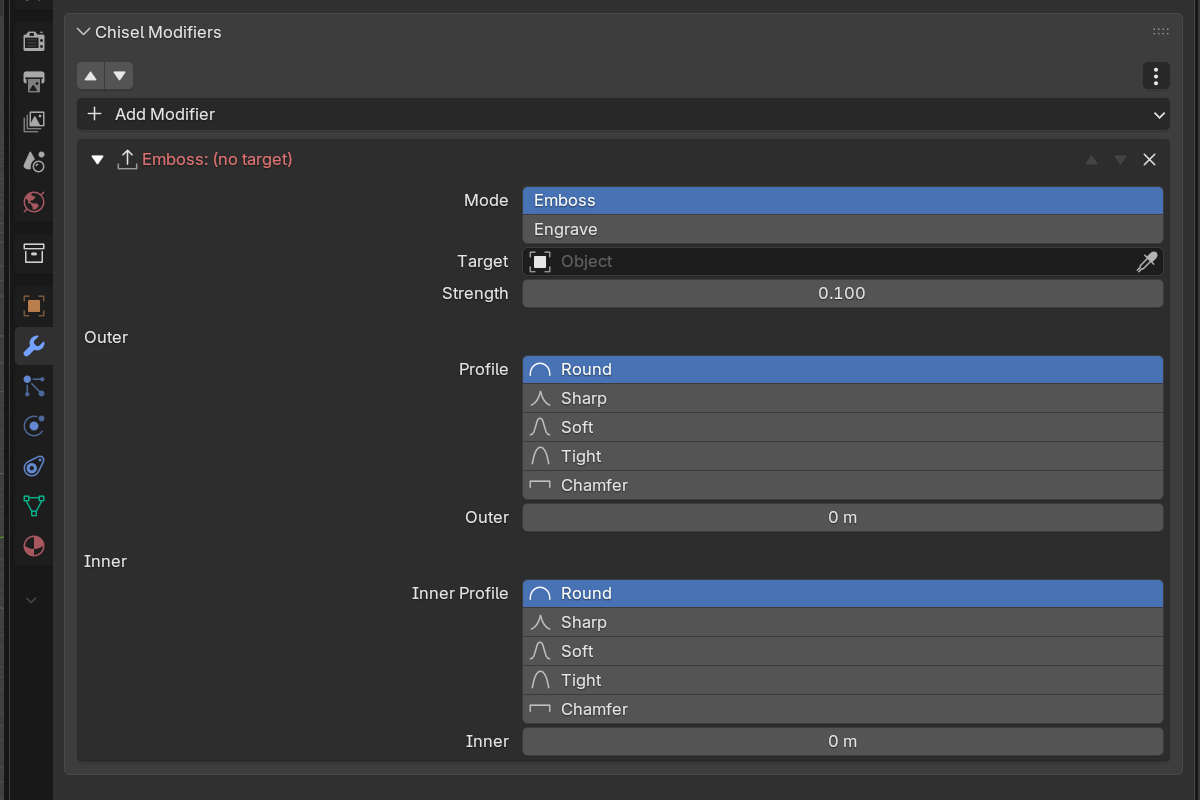
Two independent rounding controls in one modifier. Use them when, say, you want a sharp logo with softly-blended edges into the panel — set the inner profile sharp and the outer profile round.

Emboss
Raises the stamp out of the host surface.

Engrave
Recesses the stamp into the host surface.
Parameters
- Target — the shape used as the displacement stamp
- Mode — Emboss (raise) or Engrave (recess)
- Strength — displacement amount (
0.0–10.0, soft max1.0, default0.1)
Outer edge (where the stamp meets the host surface)
- Blend Radius — fillet radius at the outer seam (
0.0–10.0, soft max2.0) - Blend Profile — Round / Sharp / Soft / Tight / Chamfer
- Blend Smooth (Chamfer only)
Inner edge (the corner of the embossed feature itself)
- Inner Radius — fillet radius at the corner of the feature (
0.0–10.0, soft max2.0) - Inner Profile — Round / Sharp / Soft / Tight / Chamfer
- Inner Smooth (Chamfer only)
Setup
- Create the host object (the surface you want to emboss into).
- Create the stamp object (any Chisel primitive or modifier stack).
- On the host, add an Emboss (or Engrave) modifier.
- Set Target to the stamp.
- Tune Strength, then Blend Radius (outer) and Inner Radius (inner) to taste.
Use cases
- Logos and stamps — embossed text on a button, recessed brand mark on a panel
- Worn surfaces — large engraved features for tool wear, scratches, depressions
- Decorative reliefs — emboss a curve-based shape onto an architectural panel
See also
- Boolean — for sharp cuts rather than displacements
- Rounding & Blending — the five profiles