
Display
How non-SDF and hidden Blender objects render alongside the SDF scene, plus the proxy-mesh bake that makes Chisel objects work in EEVEE / Cycles / Solid view.
For the in-viewport gizmo toggles (axis arcs, click-drag dots), see Gizmos.
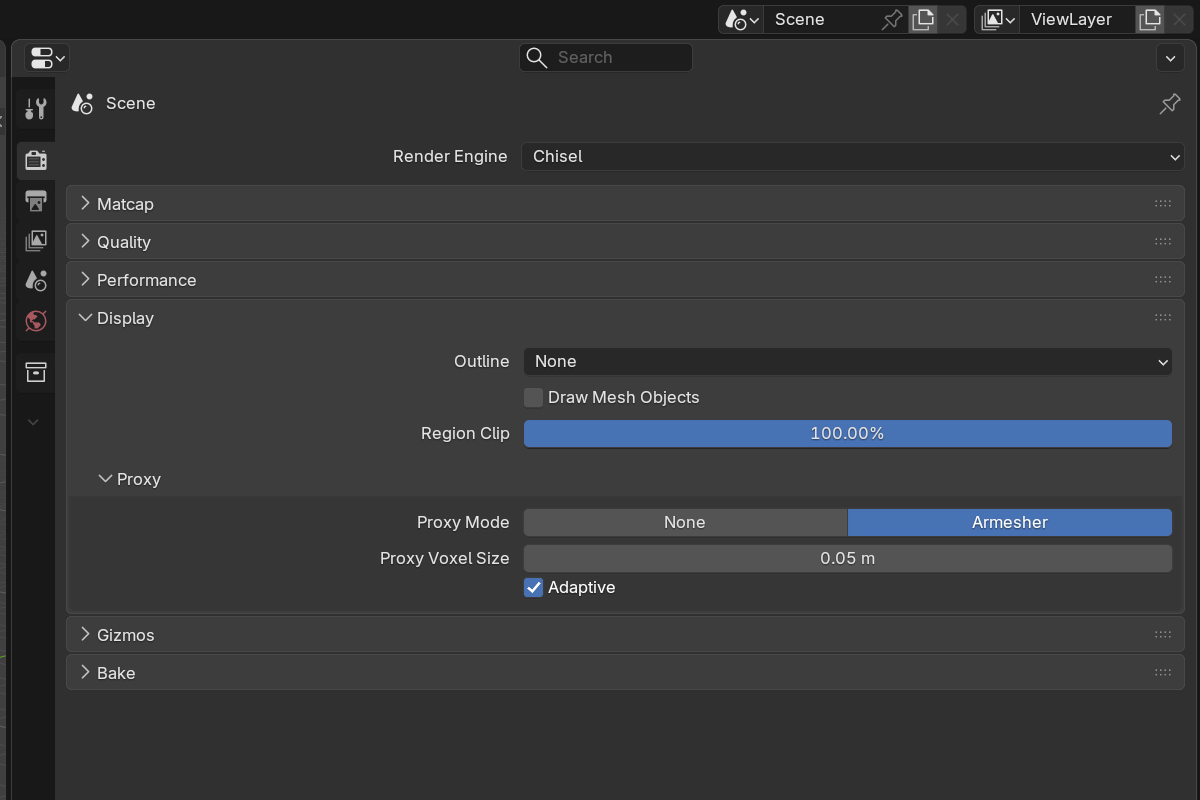
Parameters
- Outline — controls how non-rendered objects appear:
- None — hide non-rendered objects entirely.
- Wire — show non-rendered objects as wire outlines, so they remain visible without taking shading time.
- Draw Mesh Objects — render regular Blender meshes alongside the SDF, shaded with the same matcap.
”Non-rendered” vs “hidden”
A Chisel object’s Render SDF toggle (in Object Properties → Chisel) is what decides whether it contributes to the SDF render. Helper objects, boolean operands, lattices, and reference geometry typically have this off.
The Outline control above decides what happens to those non-rendered objects in the viewport:
- None — they vanish (cleanest scene preview).
- Wire — they render as edges, so you can still pick and edit them but they don’t slow the SDF render.
Draw Mesh Objects
When Draw Mesh Objects is on, regular Blender mesh objects (those not converted to Chisel) render alongside the SDF using the same matcap shading. Useful when:
- Building a scene that combines SDF carving with regular polygonal props
- Importing reference geometry for layout or scale
When off, regular meshes don’t render — only Chisel objects do.
Proxy mesh
Chisel can bake a low-resolution mesh proxy from each SDF object so it renders correctly in EEVEE, Cycles, and Solid shading — and so snapping, selection, and raycasting work on the SDF surface.
Parameters
- Proxy Mode
- None — no proxy. The base mesh stays as-is.
- armesher — bake a low-res proxy on each settle. Accurate; only runs once you stop moving so it doesn’t slow you down.
- Voxel Size —
0.001–10.0scene units, default0.05. Voxel edge length for the proxy bake.- When Adaptive is off, this is the world-space voxel size for every object.
- When Adaptive is on, this is the voxel size for a 2 m reference object — smaller objects get proportionally smaller voxels, larger objects get larger voxels.
- Voxel Adaptive — default on. Scales voxel size with object dimensions so every Chisel object ends up with roughly the same cell count.
When to use proxy mode
| Need | Proxy Mode |
|---|---|
| Pure Chisel renders, no EEVEE/Cycles needed | None |
| Snap / raycast / select on SDF surfaces | armesher |
| EEVEE / Cycles renders alongside Chisel | armesher |
| Solid shading mode shows the correct silhouette | armesher |
Voxel-size guidance
- Default
0.05with adaptive on works for most scenes. - Tighter
0.01–0.02for fine details (engraved text, sharp seams). - Coarser
0.1–0.2for large architectural shapes where the proxy doesn’t need to resolve detail. - Adaptive off if your scene mixes very different object sizes and you want a uniform voxel size scene-wide.
If you ever see a version mismatch warning on the proxy library, click Update Native Libraries in Preferences and restart Blender.
See also
- Gizmos — viewport gizmo overlay toggles
- Matcap — viewport shading
- Performance — adaptive quality during navigation
- Operations: Convert — full mesh conversion (separate from the proxy)
- Operations: Veil — quickly hide every non-rendered object