
Draw Tool
The Chisel workspace tool turns the viewport into a drag-to-place editor. Activate it from the toolbar (T to toggle the toolbar), then click-drag to spawn primitives, click to select, or D for a quick shape picker.
Activation
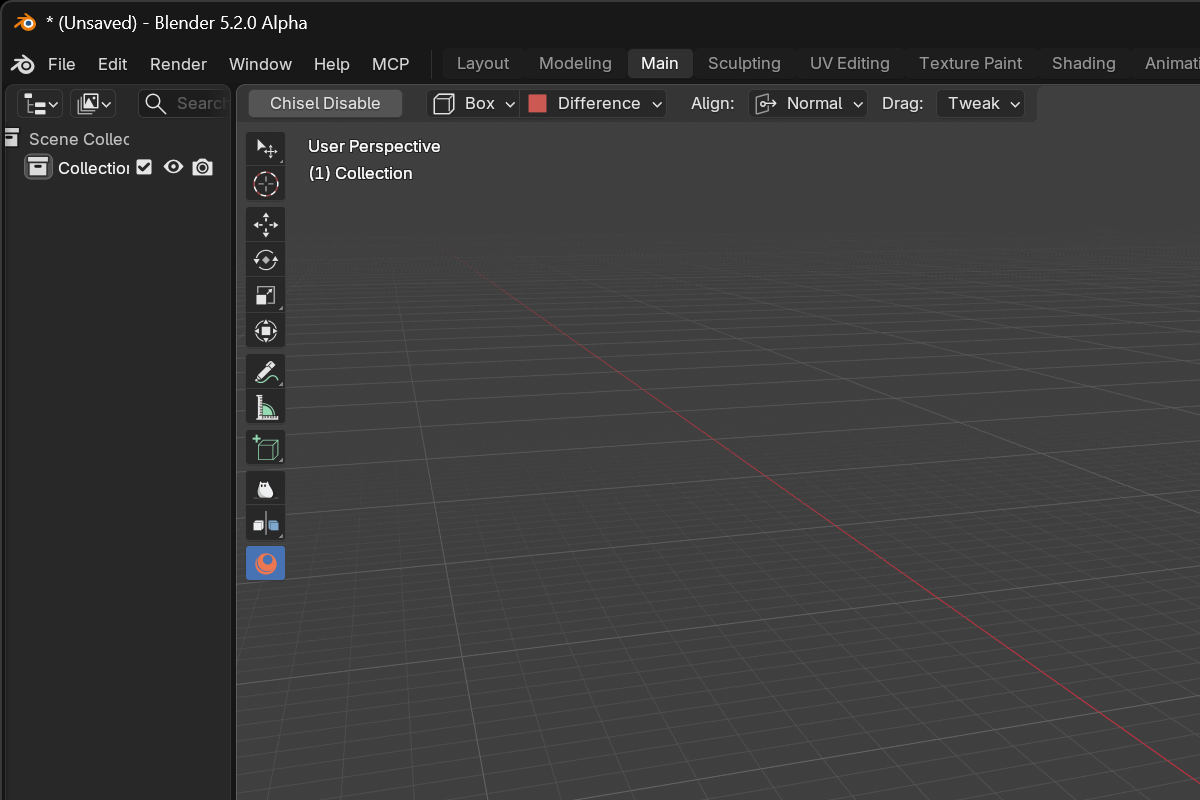
In the 3D View, open the toolbar and click the Chisel tool icon. The header at the top of the viewport switches to Chisel-specific tool settings.
Hover the tool icon to see its tooltip: it opens with the addon version (v: 3.0.0) followed by the full hotkey list, so the complete keymap is always one hover away.
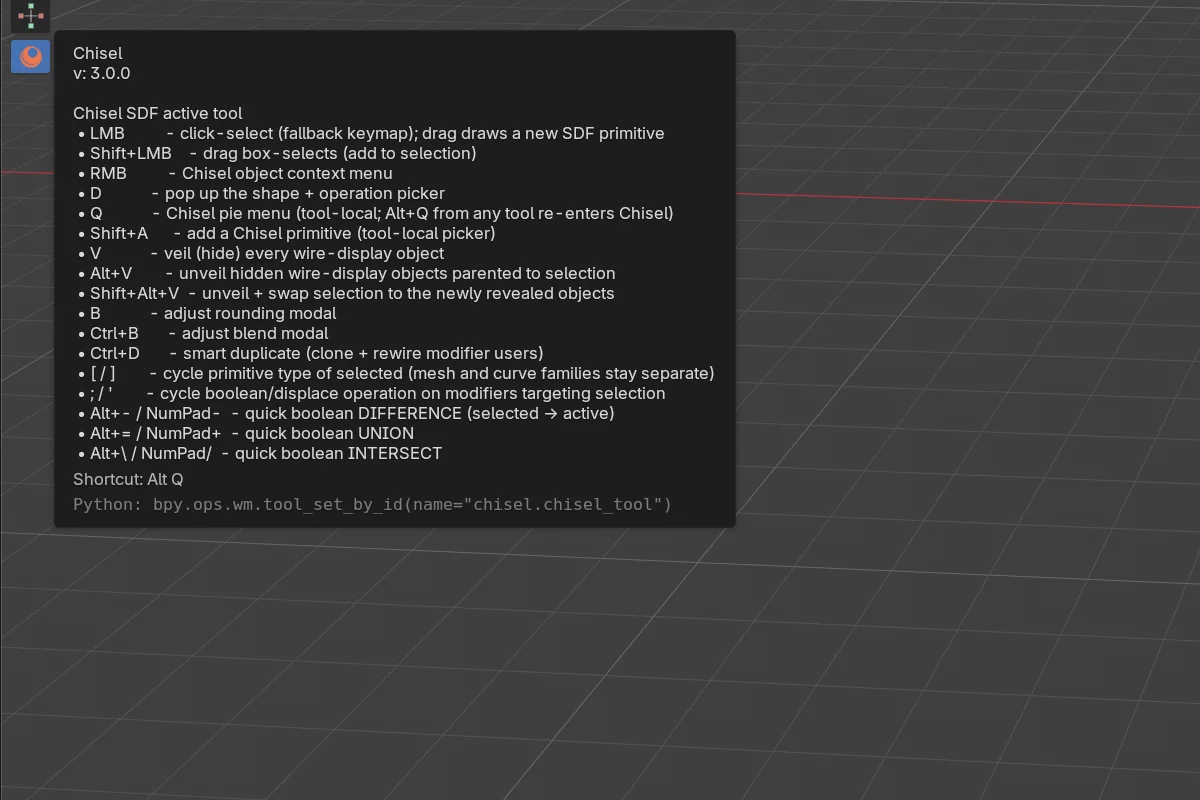
Mouse controls
| Action | Effect |
|---|---|
| LMB-drag | Place a primitive at the cursor and scale it as you drag |
| LMB-click | Standard click-select (deselect all others) |
| Shift + LMB-drag | Box-select add |
| RMB | Chisel context menu on a Chisel SDF object |
Keyboard shortcuts
| Key | Action |
|---|---|
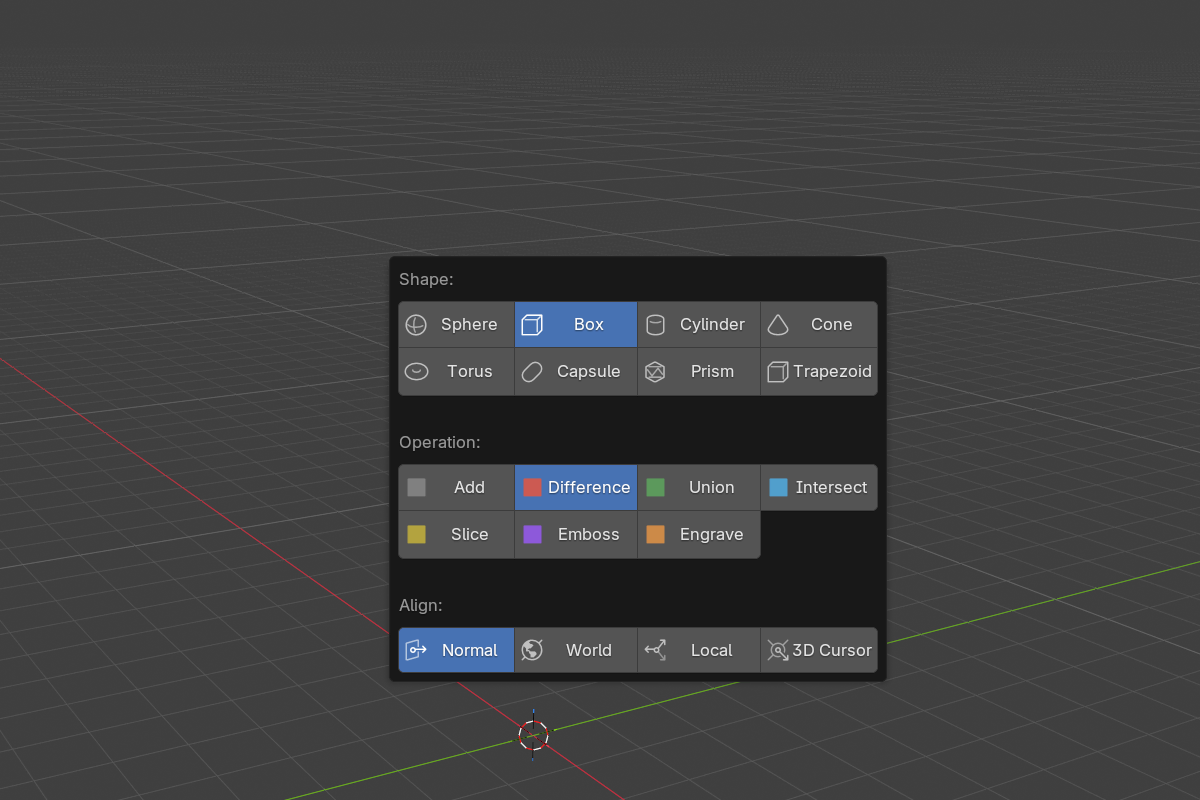
D | Inline shape + operation picker |
Q | Chisel pie menu (tool-local; Alt + Q re-enters the tool from anywhere) |
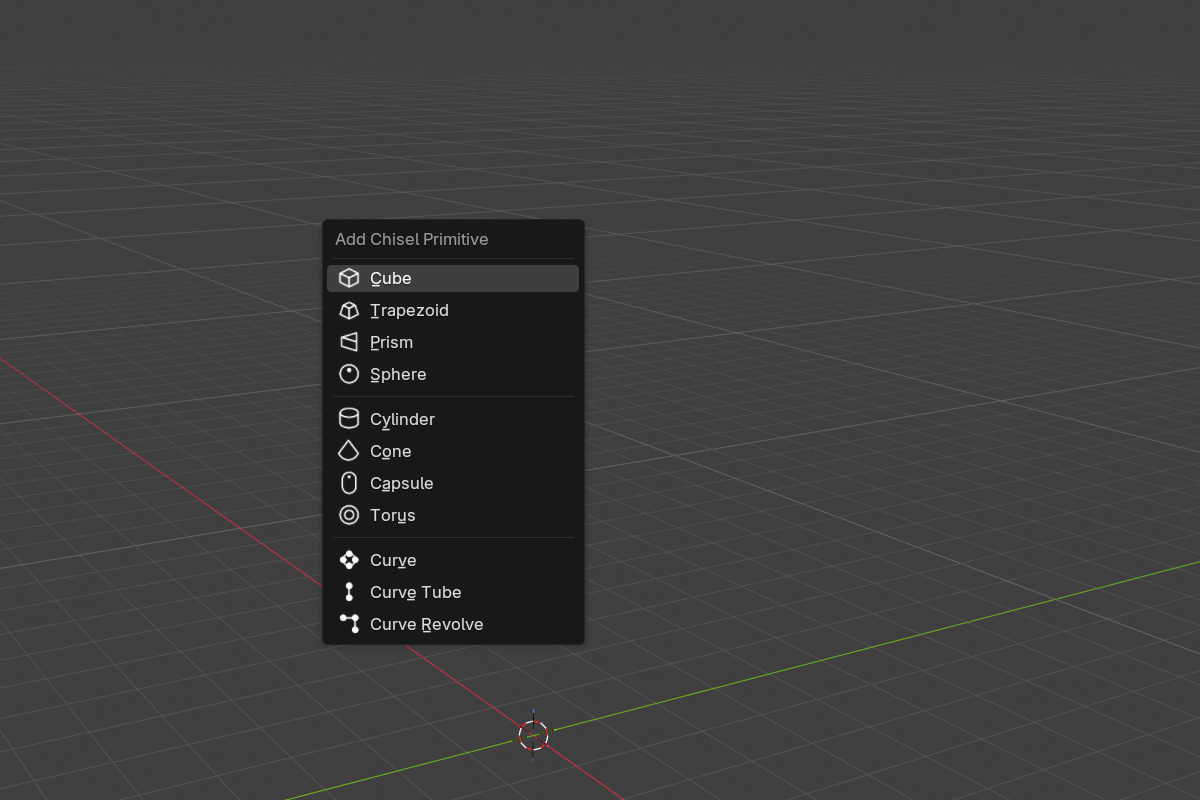
Shift + A | Primitive submenu without dropping the tool |
[ / ] | Cycle the primitive type of the selection |
; / ' | Cycle the boolean / displace operation on modifiers targeting the selection |
The D popup combines shape and operation pickers in one panel, so you can swap between Box / Sphere / Cylinder and Add / Difference / Union without leaving the viewport.
[ and ] step the selected shape through its primitive type — mesh and curve families stay separate, so a cycle never turns a box into a curve. ; and ' step modifiers that target the selection through the boolean / displace operations (Difference → Union → Intersect → Emboss → Engrave; Slice is excluded). Both pairs work only while the Chisel tool is active.
Shift + A opens the standard primitive submenu, scoped to Chisel:
Tool settings (top header)
Three settings live at the top of the viewport while the Chisel tool is active. They apply to the next primitive you draw.
- Shape — what gets drawn on LMB-drag (Sphere / Box / Cylinder / Cone / Torus / Capsule / Prism / Trapezoid)
- Operation — Add / Difference / Union / Intersect / Slice / Emboss / Engrave. Anything other than Add wires the new shape as a modifier on the active object instead of as a free-standing object.
- Align — orientation applied at spawn:
- Normal (default) — surface normal under the cursor
- World — world axes
- Local — object-local axes under the cursor
- Cursor — Blender’s 3D Cursor orientation
Drag clamping
Tiny drags (under 4 pixels) are clamped to a near-zero spawn scale so a stray click doesn’t paste a full-size primitive. To create a default-size primitive, hold the mouse and drag a noticeable distance.
See also
- Pie Menu — keyboard alternative for adding primitives
- Right-Click Menu — the
RMBcontext menu the tool enables - Modifiers: Boolean — what Operation = Difference / Union / etc. does
- Keymap — full hotkey list