
View Markdown
Render Engine
Chisel ships a custom GPU ray-marching engine. It evaluates SDFs directly per pixel — no triangulation, no LOD, mathematically exact surfaces at any zoom. Settings live in the Render Properties panel under the Chisel section.
Activate the engine
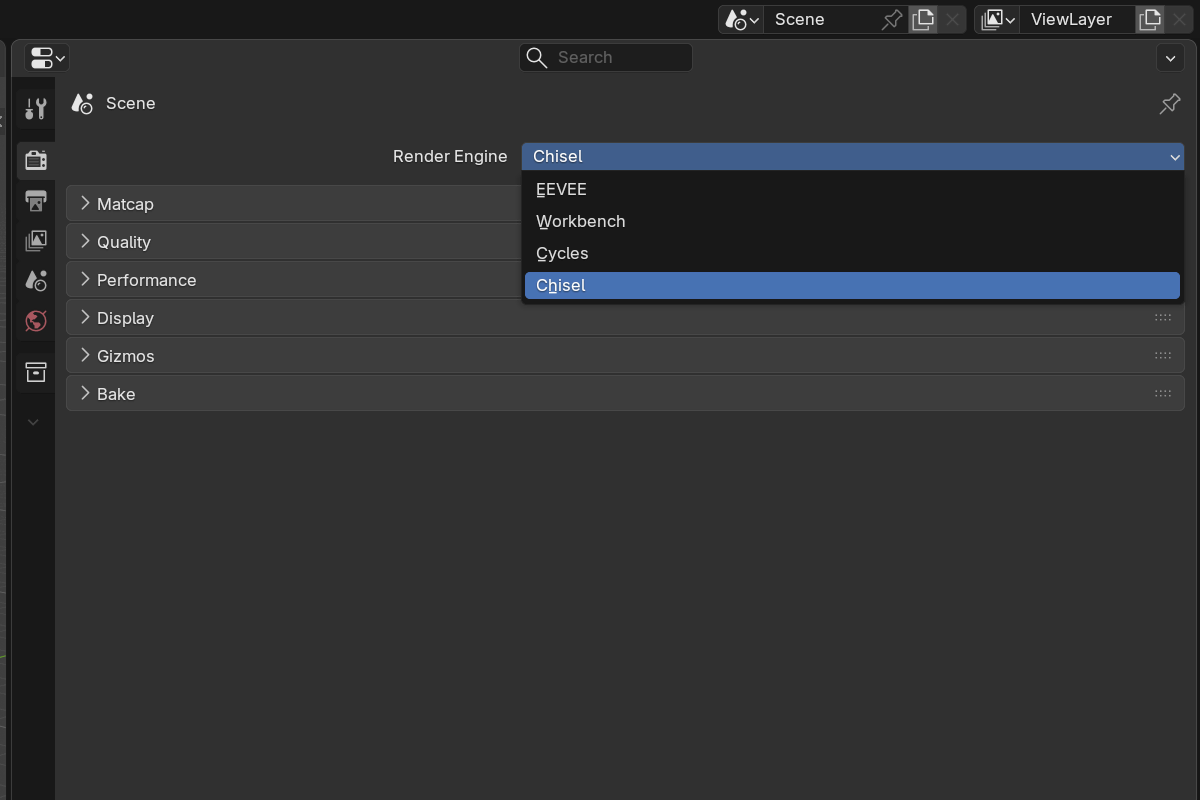
The render engine is set per scene. In each scene where you want to use Chisel, open Render Properties and switch Render Engine to Chisel, then put the 3D viewport into Material Preview shading. The Chisel engine renders SDF objects via raymarching while leaving the rest of Blender’s pipeline (overlays, gizmos, grease pencil) untouched.
The first frame after activation pauses while shaders compile — see the first-run shader compilation note.
Topics
- Quality — ray-march steps, hit threshold, max distance, render resolution, view region
- Performance — GPU compute pipeline, the two-state navigation/settle loop, adaptive and dynamic resolution
- Matcap — built-in matcap library, color tint, specular layer
- Display — outline mode, show bounds, mesh-object draw toggle, proxy mesh for EEVEE/Cycles
- Gizmos — in-viewport gizmo overlay toggles (axis arcs, click-drag dots)
- Baking — bake normal, height, mask, and diffuse maps directly from SDF
- F12 Render — render the SDF scene through the active camera to the Render Result
Performance tips
- Use Vulkan. OpenGL is significantly slower for both compilation and runtime.
- Lower Min Resolution (or drop Adaptive Resolution) for buttery orbit on dense scenes — Dynamic Resolution will hold your target FPS automatically.
- Increase Max Steps only when silhouettes look chunky; the default is enough for most scenes.
- Enable the proxy mode if you need accurate snapping or want EEVEE/Cycles renders alongside Chisel viewports.
- Reduce Render Resolution before Max Steps — resolution gives you the biggest speedup with the least visible quality loss.
7 items under this folder.