
View Markdown
Right-Click Menu
While the Chisel tool is active, right-clicking a Chisel SDF object opens a dedicated context menu instead of Blender’s default. It collects modal-adjust shortcuts, type and modifier swaps, conversion, and the usual object actions in one place. The menu only appears when the active object is a Chisel SDF — right-clicking a plain mesh or empty falls back to nothing.
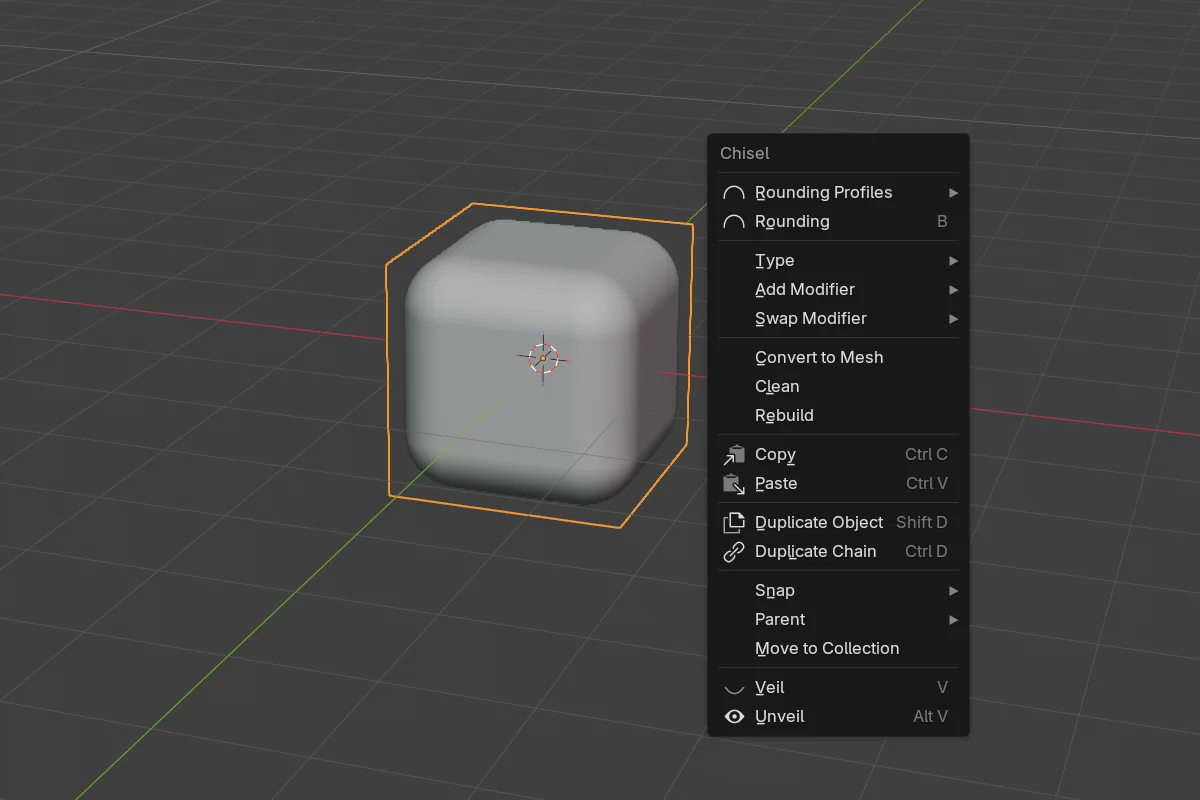
Modal-adjust shortcuts
The top of the menu is dynamic: it shows only the rows that apply to the current selection, and each row launches a drag modal that edits every matching object in the selection at once.
- Shape row — one control for the active primitive’s defining parameter: Cap (Cone, Trapezoid), prism side-count toggles
3/5/6/8plus an apex angle readout for triangular prisms, Minor R (Torus), Depth (Curve), Radius (Curve Tube), or Angle (Curve Revolve). - Bevel (Prism and Trapezoid only) — a Bevel Profiles submenu plus a Bevel drag. When the bevel profile is Chamfer, a Smooth entry appears.
- Rounding — a Rounding Profiles submenu plus a Rounding drag, for any selected shape that supports rounding. On Chamfer, a Smooth entry appears.
- Blend — a Blend Profiles submenu plus a Blend drag, when the selection is a boolean target. On Chamfer, Smooth.
- Outer / Inner — Outer Profiles and Inner Profiles submenus plus Outer and Inner drags, when the selection is an emboss / engrave target. Each gets a Smooth entry on Chamfer.
- Emboss / Engrave — a strength drag for whichever displace operation the selection uses.
Type, Add Modifier, Swap Modifier
- Type — swap the primitive type on every selected Chisel shape. Mesh and curve families never cross; incompatible objects are skipped with a report.
- Add Modifier — Boolean Difference / Union / Intersect, Slice, Emboss, Engrave, Mirror, Solidify, Array, Twist, Bend.
- Swap Modifier — rewrites every modifier in the scene that targets the selection to the chosen operation. Swapping to Slice flips matches to Difference on the host and spawns a per-host slice duplicate.
Convert, Clean, Rebuild
- Convert to Mesh — opens its full options dialog (algorithm, cell size, normals — see Convert to Mesh).
- Clean — strip targeting modifiers and make the shape solid (see Clean).
- Rebuild — regenerate the proxy mesh (see Rebuild Mesh).
Copy / Paste and duplicate
- Copy / Paste — Blender’s standard copy buffer.
- Duplicate Object — Blender’s stock
object.duplicate_move; copies just the active object. - Duplicate Chain — Chisel’s smart duplicate (
Ctrl + D). It pulls children, boolean/displace targets, and curve sources along as a group, and rewires any external owners’ modifier stacks so group cuts stay group cuts.
Snap, Parent, Move to Collection
These are Blender’s stock Snap and Parent submenus plus Move to Collection, surfaced here so you don’t have to leave the Chisel tool.
Veil / Unveil
- Veil — hide every non-rendered helper except your current selection.
- Unveil — reveal hidden non-rendered objects parented to (or targeted by) the selection.
See Veil & Unveil for the hotkeys and full behavior.