
Pie Menu
The pie menu is the fastest way to model in Chisel. Press Q for radial access to primitives, modifiers, profile toggles, and the renderer. Q is tool-local — it only opens while the Chisel tool is active, so it never shadows Blender’s default Q (Quick Favourites) elsewhere. Alt + Q works from any tool: it activates (or re-enters) the Chisel tool, after which Q opens the pie.
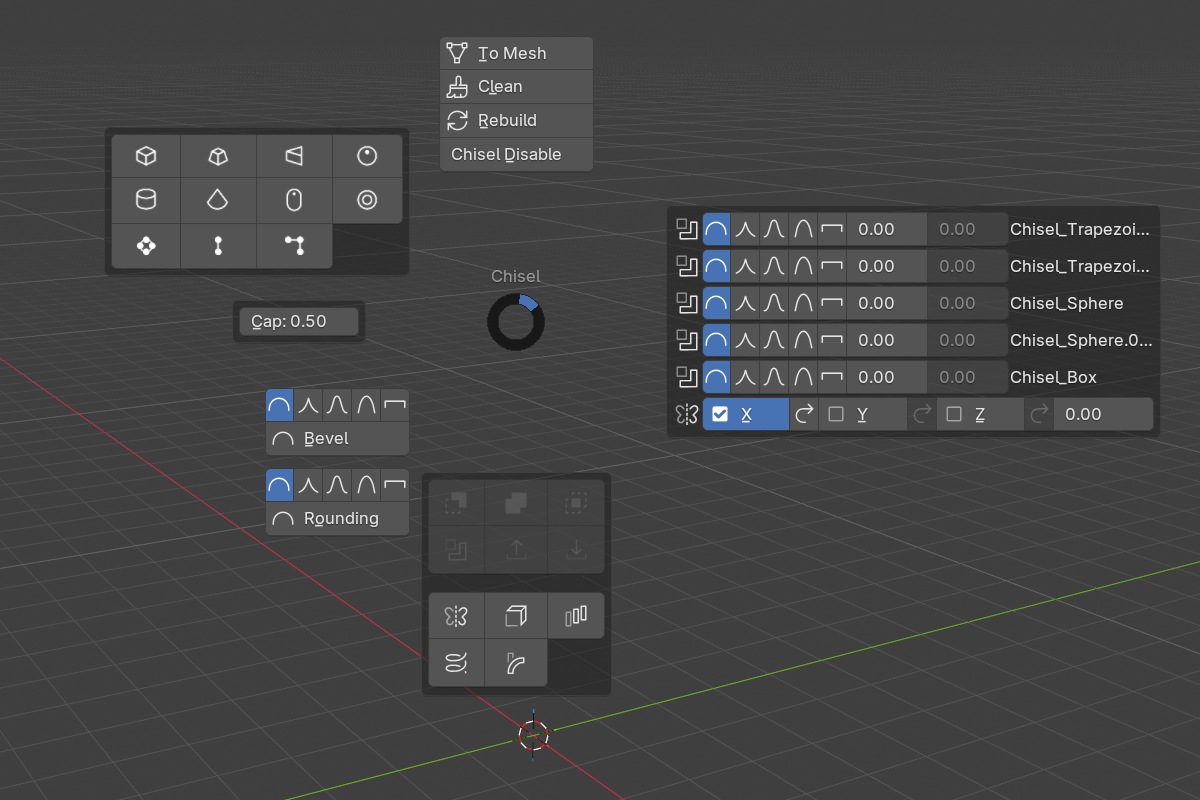
Wedges
- NW — Add / Swap Primitive — grid of primitive types with custom icons (see below)
- N — Engine actions — To Mesh, Clean, Rebuild, and the engine toggle (Chisel Disable / Chisel Enable)
- W — Shape control — the active primitive’s defining parameter (cap, prism sides, minor radius, depth, etc.)
- E — Modifier controls — one row per modifier on the active object (boolean profiles + blend, mirror axes, array, twist, bend, emboss/engrave)
- S — Add / Swap Modifier — boolean Difference / Union / Intersect, Slice, Emboss, Engrave, plus Mirror, Solidify, Array, Twist, Bend (see below)
- SW — Profile picker — Rounding / Bevel / Blend / Outer / Inner profiles for the active selection
The exact contents adapt to the current selection — wedges that don’t apply collapse to an empty slot.
Dual buttons — click adds, Shift+click swaps
The primitive grid (NW) and the boolean / emboss / engrave buttons (S) are dual-function:
- Click — add. A primitive button drops that shape at the 3D cursor; a modifier button wires the operation onto the selection. These run the Add / Swap Primitive and Add / Swap Modifier operators.
- Shift + click — swap. Swaps the type on every selected Chisel shape, or rewrites every modifier in the scene that targets the selection to the new operation — in one step.
Swapping a primitive type stays inside its family: mesh shapes and curve shapes never cross. The Slice button and the Mirror / Solidify / Array / Twist / Bend buttons are single-function add buttons.
Status warnings
The SE wedge shows status warnings while they apply:
- “Shaders not compiled, first run may take longer” — appears while shaders are still compiling on first run.
- “OpenGL backend, Vulkan is much faster” — appears when Blender is running on OpenGL. Switch to Vulkan in
Edit → Preferences → System → Backend.
Profile shortcuts
The profile picker (SW) sets the edge profile on whatever the selection supports — Rounding and Bevel on the primitive, Blend on a boolean target, and Outer / Inner on an emboss / engrave target. Each profile submenu offers Round / Sharp / Soft / Tight / Chamfer, with the current one highlighted.
See also
- Draw Tool — drag-to-place primitive placement
- Right-Click Menu — the same add / swap operations from a context menu
- Keymap — full hotkey list
- Rounding & Blending: Profiles — profile descriptions