
Installation
Chisel is a Blender extension. Install Blender first, then drop the Chisel zip into the Blender window.
Requirements
- Blender 4.5.7 or newer — including the 5.x series.
- Windows x64, Linux x64, or macOS on Apple Silicon (ARM64). There is no Intel-Mac build.
- Vulkan-capable GPU strongly recommended. OpenGL works but compiles and runs 5–10× slower. On Apple Silicon the renderer runs natively on Metal.
Chisel ships native armesher wheels for Python 3.11 and 3.13 (the runtimes Blender 4.5 and 5.x use) across all three platforms. Blender installs the wheel matching your platform and Python version automatically.
Get Blender
- Visit blender.org and grab 4.5.7 or later (4.5.7+ or any 5.x) for your OS.
- Install Blender.
Get Chisel
Download Chisel from the Superhive marketplace and save the .zip somewhere convenient.
Install the addon
- Open Blender.
- Drag the Chisel
.zipdirectly into the Blender window. Blender installs it as an extension. Edit → Preferences → Save Preferencesso the install persists across sessions.
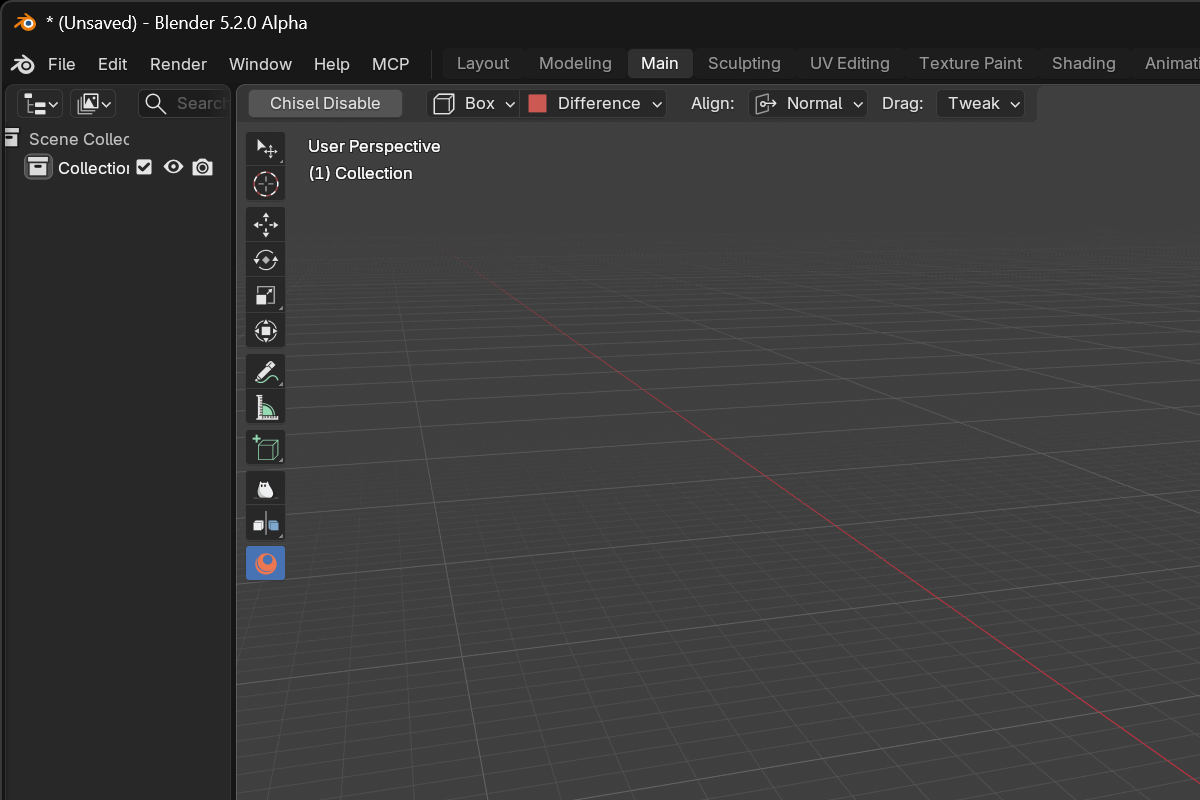
When the install completes, the Chisel workspace tool appears in the 3D View toolbar — that’s the visible sign the extension is loaded.
Verify
Open Edit → Preferences → Add-ons → Chisel and look at the Info tab. The status block should show:
- armesher —
armesher 3.0.0with a checkmark, the bundled native library. - GPU Backend — the active backend (e.g. Vulkan, Metal on Apple Silicon, or OpenGL). Vulkan and Metal are much faster than OpenGL.
- Schema hash —
Schema hash: <hash> (matched), confirming the addon and the loaded wheel agree.
If the schema line reads Schema hash mismatch instead, the loaded
armesherwheel was built against a different addon revision. Click Update Native Libraries to reinstall the bundled wheel, then restart Blender. The build-hash handshake catches a stale wheel up front with a “rebuild wheels” notice — it won’t fail silently at render time.
Next
Head to First Launch to switch on the engine, drop your first primitive, and try a smooth boolean.