
View Markdown
Matcap
Chisel uses Blender’s matcap library for shading. Pick a matcap from the dropdown — it’s the same list as Blender’s solid-mode matcaps, plus a few SDF-friendly defaults.
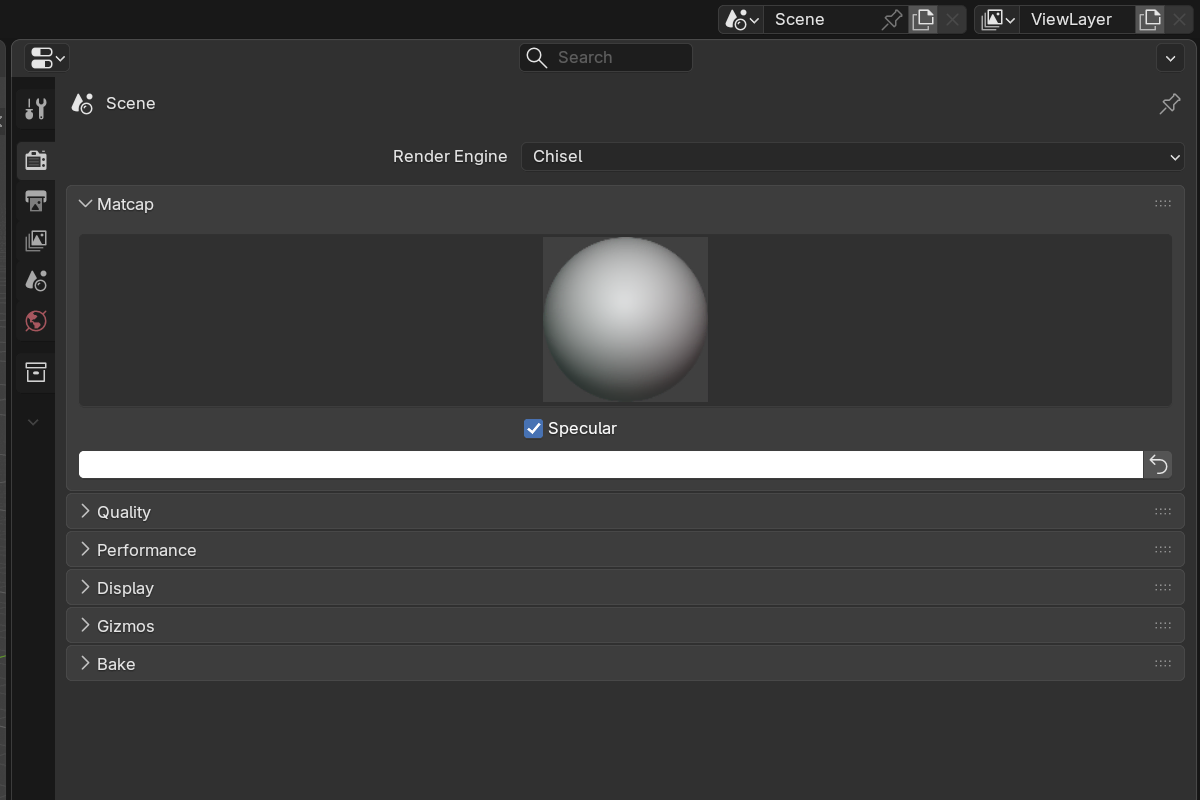
Parameters
- Matcap — choose from the available matcaps (populated dynamically from Blender’s
studio_lightsAPI). - Use Specular — when on, applies the matcap’s specular layer if it’s a multi-layer studio light. Some matcaps ship a separate spec layer that captures highlight detail; toggle this to enable or disable that layer.
- Matcap Color — RGB tint multiplied over the matcap diffuse. White (
1, 1, 1) leaves the matcap untouched. Use a cool tint for chrome, warm for brass, etc. The Reset button next to it returns the tint to white.
Choosing a matcap
| Matcap style | Good for |
|---|---|
| Bright clay / matte | Form readability while modeling |
| Polished metal | Final hard-surface presentation |
| Skin tones | Organic / character work |
| Soft shadow | Architecture, environment props |
Blender includes a varied set out of the box. You can also drop additional .exr matcaps into Blender’s datafiles/studiolights/matcap folder to extend the library.
Per-object color
Each Chisel object also has its own Color in Material Properties — that’s what gets multiplied with the matcap to give per-object tint. The scene-wide Matcap Color applies on top of all of them.
See also
- Display — outline and mesh-object draw modes
- Interface: Object Panel — per-object color