
Primitives
Primitives are the building blocks of every Chisel scene. Each one is defined by a math function, so surfaces stay perfectly smooth at any scale and rounding is a constant — not a subdivision setting.
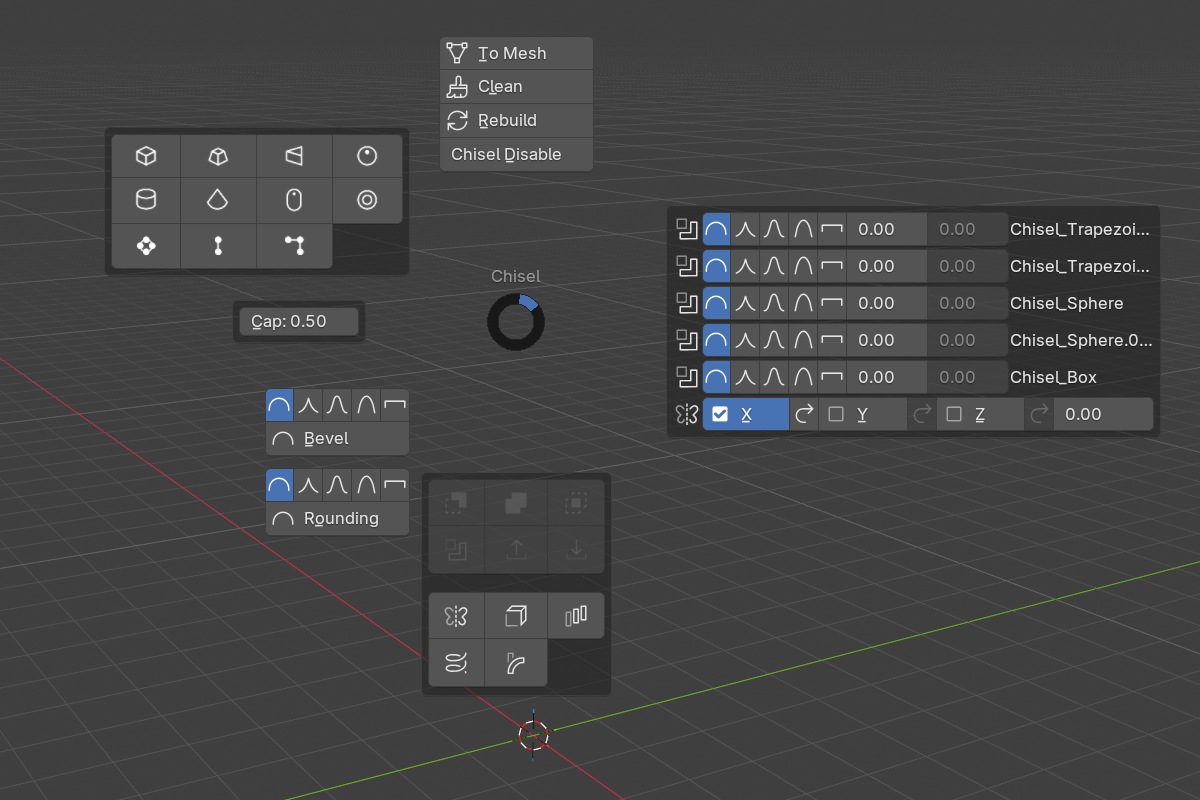
Adding a primitive
Three ways to create one:
Shift + A → Chisel— Blender’s add menu, with custom Chisel iconsQ(pie menu) → North-West — primitive grid- Draw tool — activate the Chisel tool in the toolbar, then LMB-drag in the viewport. The primitive is placed under the cursor and scaled live as you drag.
The draw tool aligns the new primitive based on its Align option:
| Align | Behavior |
|---|---|
| Normal (default) | Surface normal under the cursor |
| World | World axes |
| Local | Object-local axes under the cursor |
| Cursor | Blender’s 3D Cursor orientation |
Press D while the draw tool is active to open the shape and operation picker popup. Use it to set the shape that the next drag spawns (Box, Sphere, Cylinder…) and the operation (Add, Difference, Union, Intersect, Slice, Emboss, Engrave) without leaving the viewport. The D picker lists the eight mesh shapes only — curve types are added from the Shift + A → Chisel or pie grids.
Changing the type after creation
A primitive’s type isn’t locked in. To swap an existing shape to another:
[/](Chisel tool only) — cycle the active primitive’s typeRMB → Type— pick any type from the submenu; the current one is highlighted- Pie grid (
Shift + click) —Shift-click a primitive button to swap every selected shape to that type
Swapping is family-locked: the eight mesh shapes form one family and the three curve types form another, and a swap never crosses between them. Try to switch a Box to a Curve and Chisel skips it and reports how many objects were incompatible.
Common parameters
Every primitive lives on a regular Blender object. Its SDF settings are in the Object Properties panel under the Chisel section.
- Is Chisel — toggle SDF mode on/off
- Primitive Type — change the shape after creation
- Half-Extents (X, Y, Z) — bounding extents along each axis, derived from the object’s scale
- Rounding (most primitives) — edge radius (
0.0–10.0, soft max2.0, default0.0) - Profile (most primitives) — Round / Sharp / Soft / Tight / Chamfer
- Chamfer Smooth (only when Profile = Chamfer) — softens where the chamfer meets the faces (
0.0–5.0)
Sphere, Torus, and Capsule have no rounding option — their surfaces are already smooth by construction.
Categories
- Standard Shapes — Box, Sphere, Cylinder, Cone, Capsule, Torus, Prism, Trapezoid
- Curve-Based — Curve (extruded 2D), Curve Tube (3D Bezier sweep), Curve Revolve (profile revolution)
Quick reference
2 items under this folder.