
Material Panel
The Chisel Material panel lives in Material Properties (red sphere icon) when the active object is a Chisel SDF and the render engine is set to Chisel.
Material slot
The slot picker at the top is Blender’s standard active material control. Click New to give the object a fresh Chisel material — that creates a material with a default node tree (a Matcap Shader feeding the Material Output) and assigns it to the slot.
Existing materials carry forward; the panel detects whether the active material has Chisel data and shows the right controls.
Color (no node tree)
When the material has no node tree yet (a fresh slot, or an imported non-Chisel material that you’ve just promoted), the panel shows a single control:
- Color — RGB value (default
0.8, 0.8, 0.8). Multiplied into the matcap so each object can carry its own tint without disturbing scene-wide shading.
For most modeling work this is all you need. Drag the swatch, pick a color, move on.
If you later want richer behavior (mix shaders, masks, blended colors across booleans), click Create Node Tree and the panel switches to the editor hint described below.
Editing the node tree
Once a node tree exists, the panel collapses to a hint:
Edit in Node Editor (Chisel Material)
Open a Node Editor area, switch its tree type to Chisel Material in the header, and the graph appears. See Node Editor for the available nodes and how they connect.
Live render preview
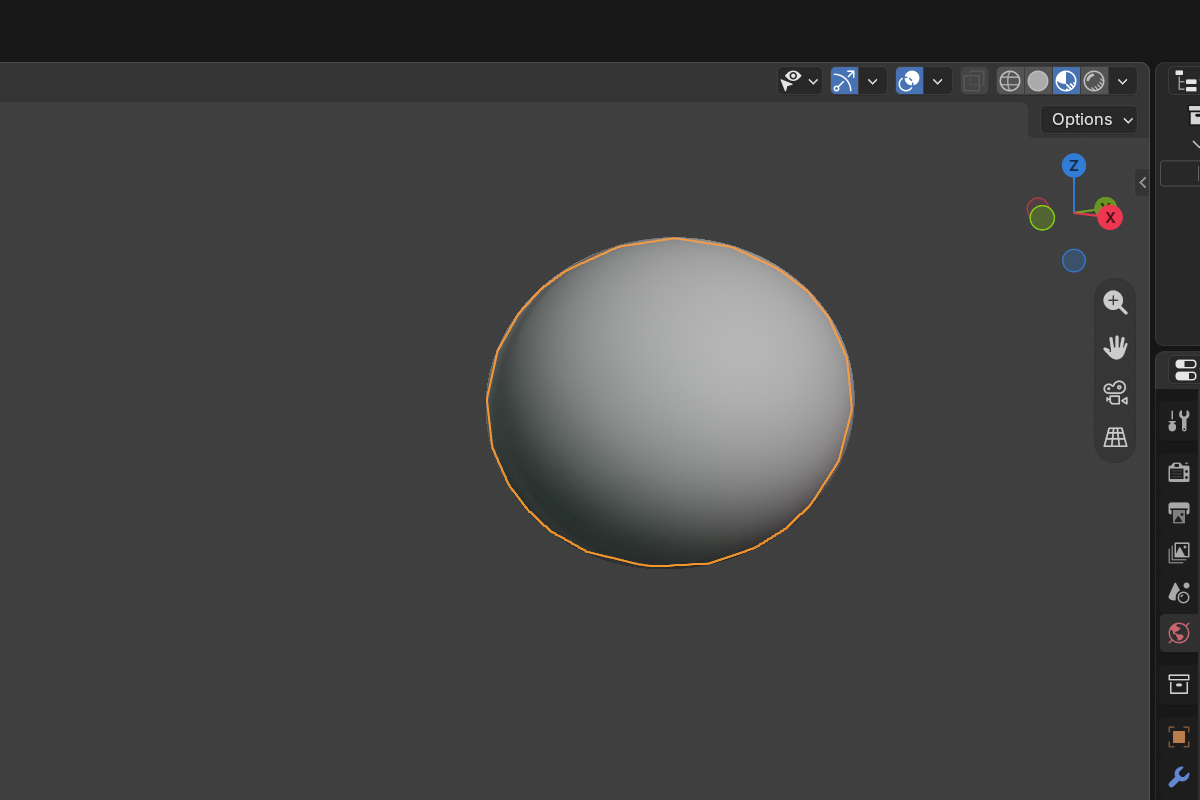
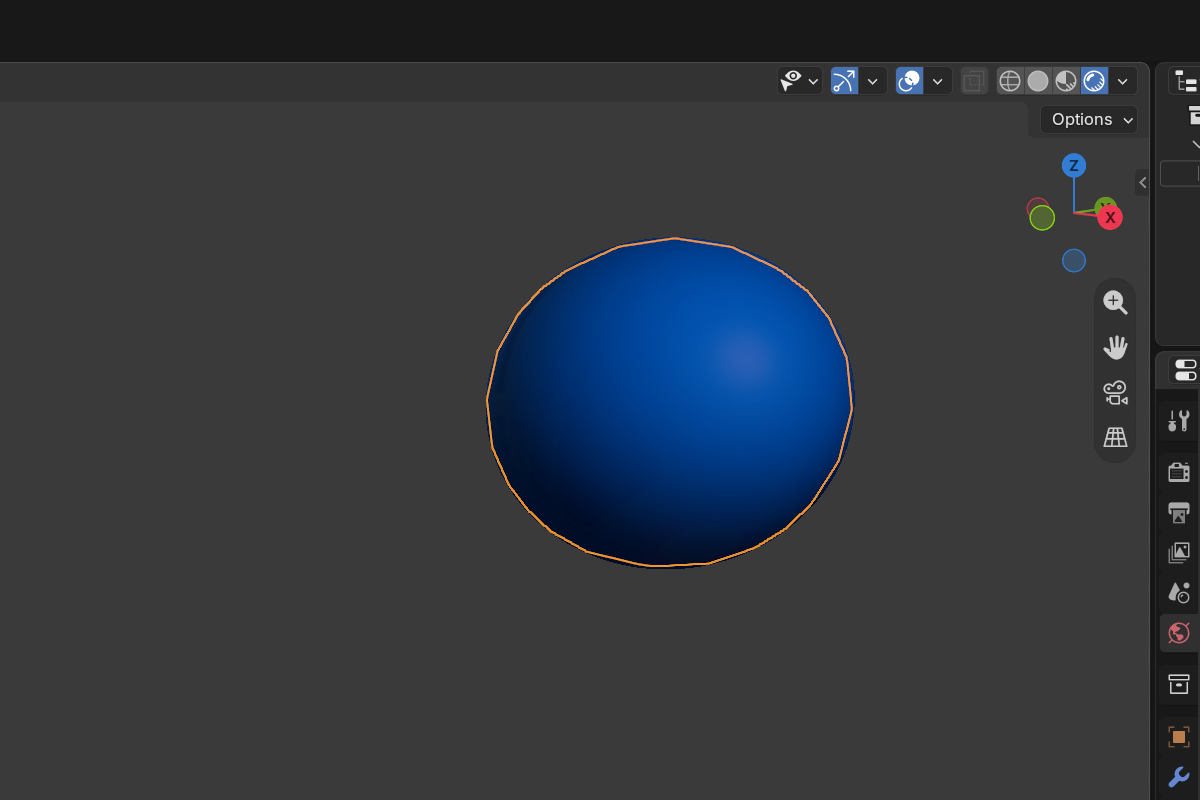
Material edits update live in the viewport while the Chisel engine is active — there’s no separate preview render. Use viewport shading at Material Preview level to see the matcap shading; Solid mode falls back to the proxy mesh and won’t show your color choices accurately.
See also
- Node Editor — the Chisel Shader Editor reference
- Render Engine: Matcap — scene matcap that the per-object color multiplies into
- Modifiers: Boolean — Material Blend width across boolean seams