
Modifiers
Modifiers compose primitives into complete shapes. Boolean, mirror, array, twist — every one of them runs on the SDF directly, so the result is always a single, watertight surface. No mesh repair, no double-sided faces, no booleans that fall apart at zoom.
Where modifiers live
The Chisel modifier list lives in the Modifier tab of the Properties editor — it replaces Blender’s stock modifier panel while the Chisel engine is active. A big Add Modifier button opens the full menu; the toolbar above the list has Collapse All, Expand All, and an options menu (the three-dot button) with an Expand toggle and Delete All. The pie menu (Q) also exposes the most common operations: boolean Difference / Union / Intersect, mirror, and quick adjustments.
Each modifier collapses into a header showing its name and active state. Click the header to expand its options. New modifiers stay collapsed unless you turn on Expand in the toolbar options menu.
Add Modifier and Swap Modifier
The Add Modifier menu groups every modifier: Boolean (Difference / Union / Intersect), Solidify, Mirror, Array, Emboss, Engrave, Twist, Bend. Booleans and Emboss / Engrave act on the selection — select the operand shapes, make the host active, then pick the entry.
Swap Modifier rewrites the operation of every modifier that targets the selected shapes in one step — switch a stack of Difference cuts to Union, or flip a boolean into Emboss, without touching the targets one by one. It is on the RMB context menu (Chisel tool active) and as the Shift+click action of the pie menu’s modifier buttons. The operation cycle hotkeys ; and ' step the same swap through Difference → Union → Intersect → Emboss → Engrave (Slice excluded).
Pinned modifiers
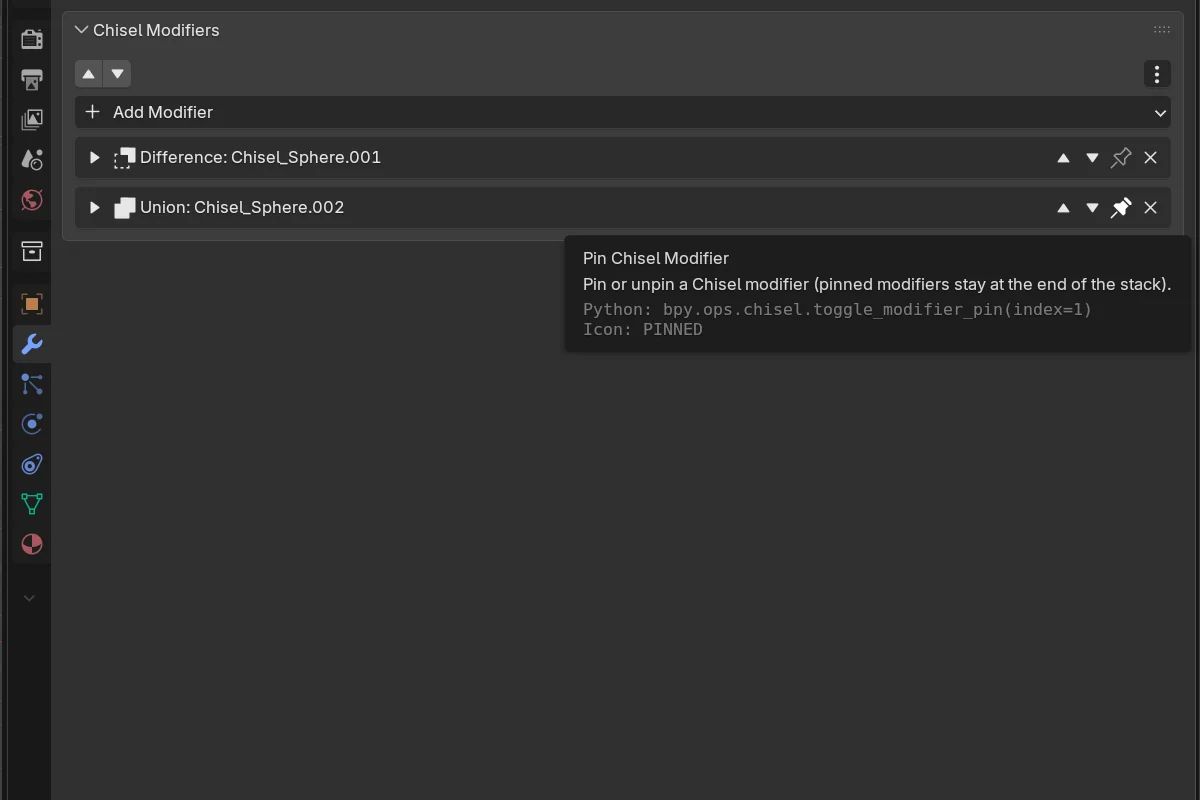
Each modifier row header has a pin toggle (operator tooltip: Pin or unpin a Chisel modifier (pinned modifiers stay at the end of the stack)). A pinned modifier is held at the end (bottom) of the stack, and every newly added modifier inserts above the pins. Unpinning drops the modifier back to the bottom of the non-pinned region. The Move Up / Move Down arrows will not carry a modifier across the pin boundary, so pinned modifiers stay grouped at the bottom.
Pin a Solidify or a final Mirror, for example, and any boolean you add afterward slots in ahead of it — so the shell or the symmetry always applies last.
Categories
- Boolean — Difference, Union, Intersect, Slice. With smooth blending.
- Mirror — Reflect across one or more axes with optional smooth seam.
- Array — Linear and circular repetition.
- Solidify — Hollow into a shell of given thickness.
- Emboss & Engrave — Push a target shape outward (Emboss) or inward (Engrave).
- Twist & Bend — Deform along an axis.
Apply
Apply (the checkmark button in the Chisel object panel, after To Mesh / Clean / Rebuild Mesh) converts the whole chain to a static triangulated mesh and removes the source SDF shapes in one click. A Delete Sources option (on by default, in the redo panel) keeps the source shapes alongside the new mesh when turned off. See Apply Modifiers.
Modifier UI tips
- Header buttons — each row header has Move Up, Move Down, a pin toggle, and Remove, in that order.
- Quick boolean hotkeys (
Alt + −/=/\\orNumPad −/+//) bypass the panel entirely: select operands, make destination active, tap the key. Ctrl + Dduplicates a shape together with its modifier graph — children, boolean and displace targets, and curve sources come along, and any external boolean that referenced the original picks up the copy too (group cuts stay group cuts).- Adjust modal —
Bopens Adjust Rounding on a primitive;Ctrl+Bopens it on the active boolean modifier. While active, keys1–5switch profiles instantly:1Round,2Sharp,3Soft,4Tight,5Chamfer;Stoggles between the radius and the Chamfer Smooth value.
6 items under this folder.